
Plan balloon decor before you inflate a single balloon
BalloonBuilder is a design tool for balloon artists. You build a column, arch, wall or mosaic on screen, see it in 2D and 3D, colour it with real balloon colours, and get the balloon list for ordering and building.
Create a free account See how it worksWhat you can make
There are two designers. Every picture below is a 3D view of a design made in them.
Column & Arch Designer
All column and arch modes →Columns, arches, ring columns, Link-O-Loon designs, letters and helium designs.
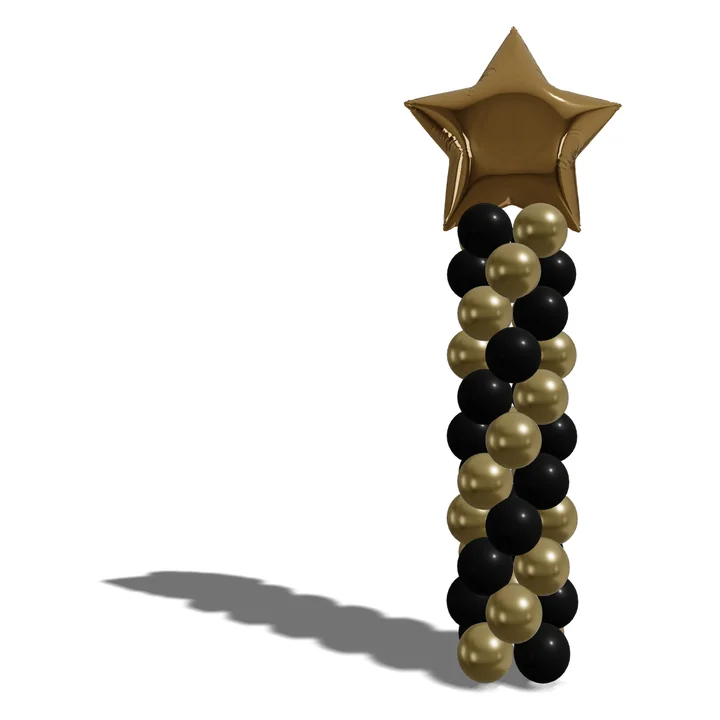
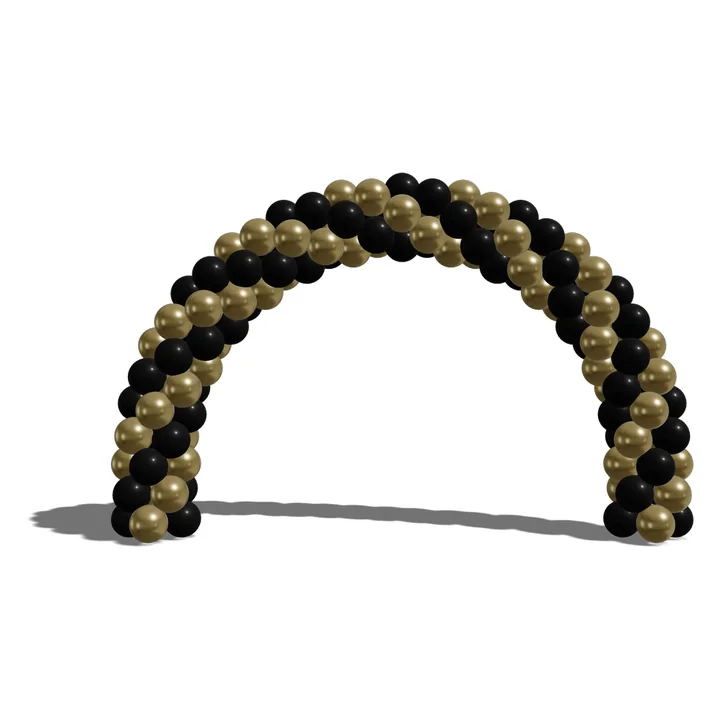
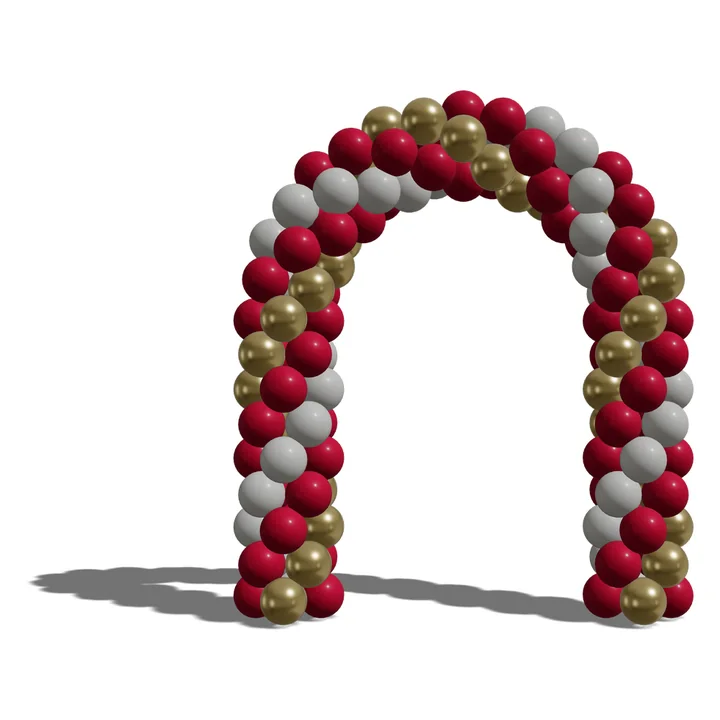
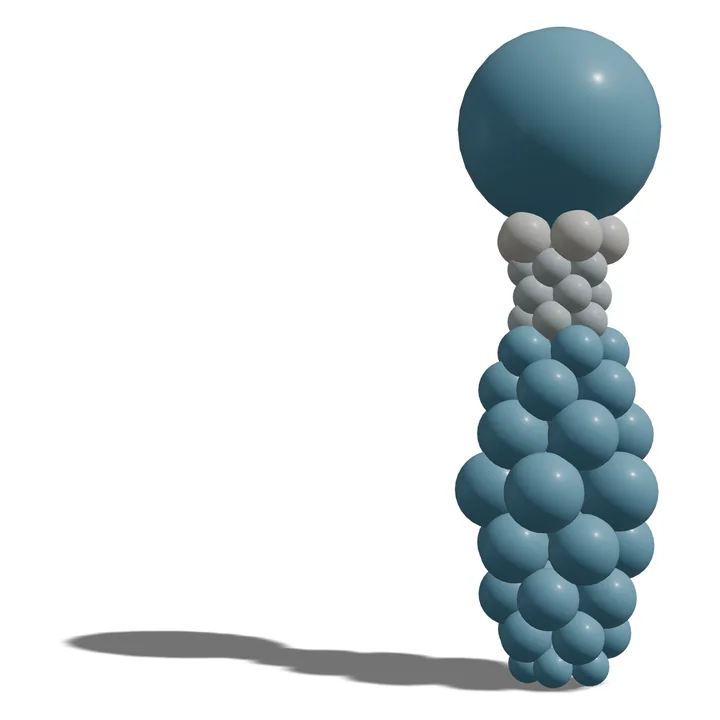
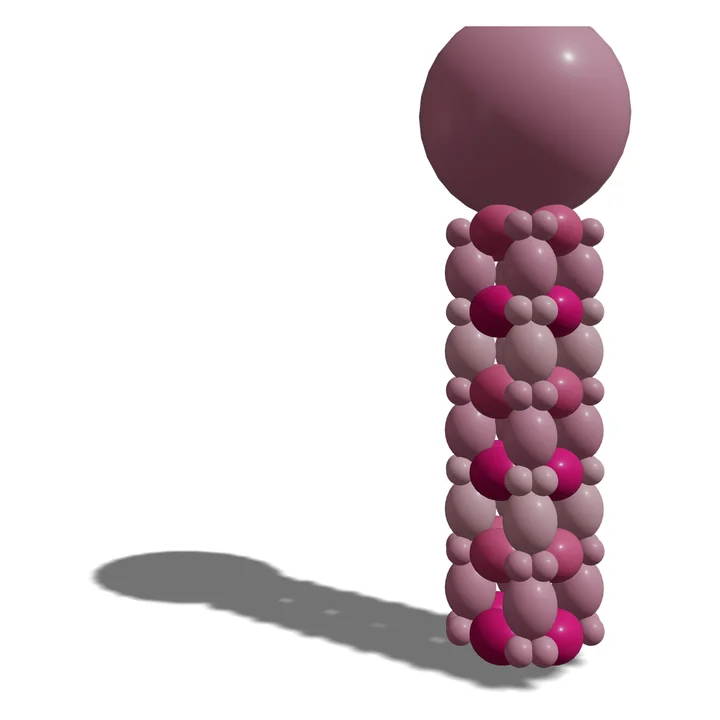
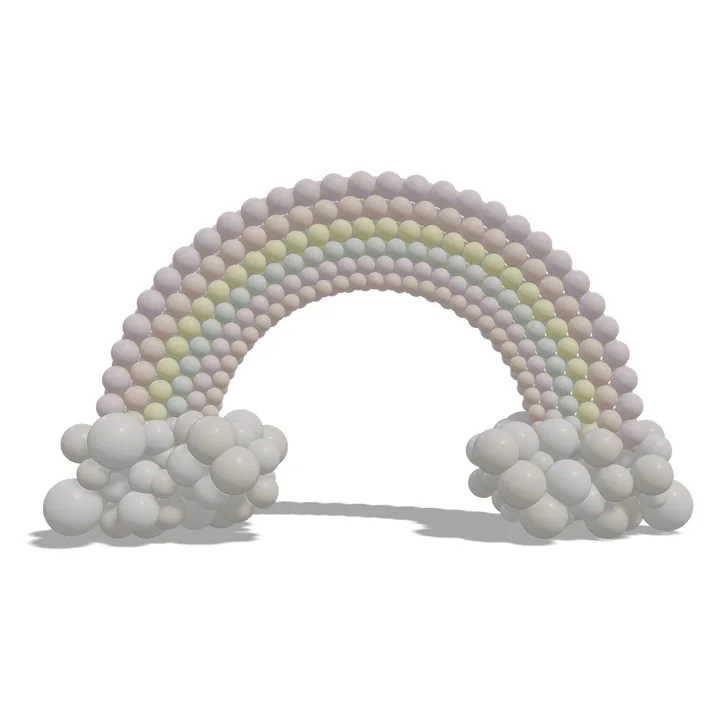
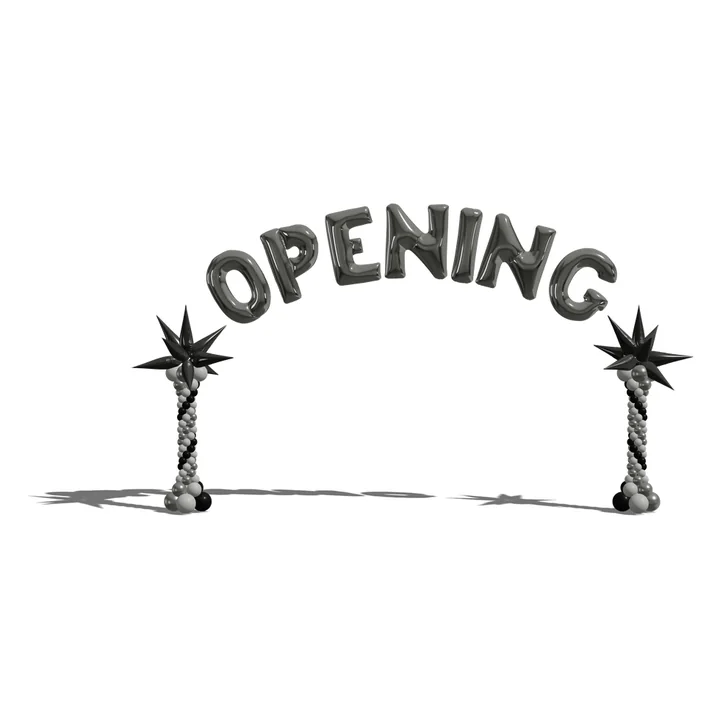
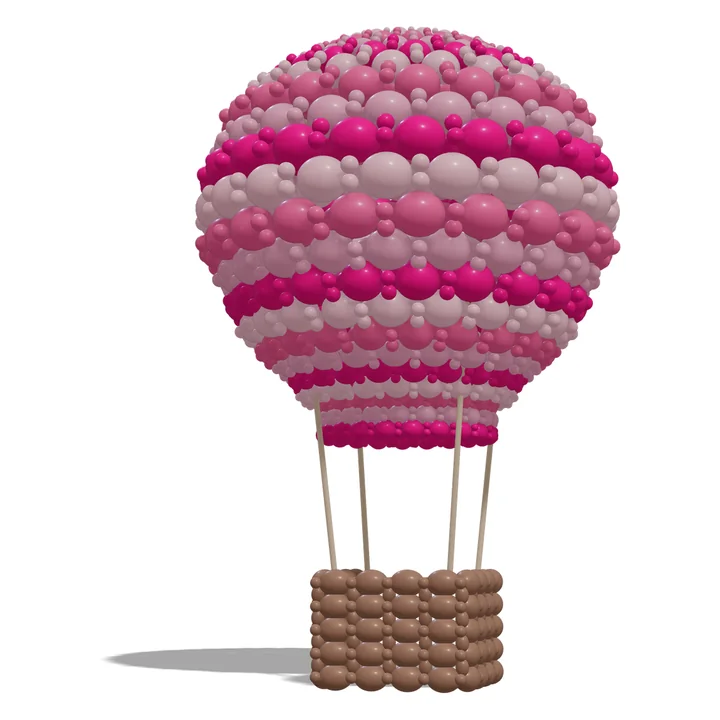
Helium bouquets, LED bubble balloons and shaped sculptures such as a globe are made in the Column & Arch Designer too.
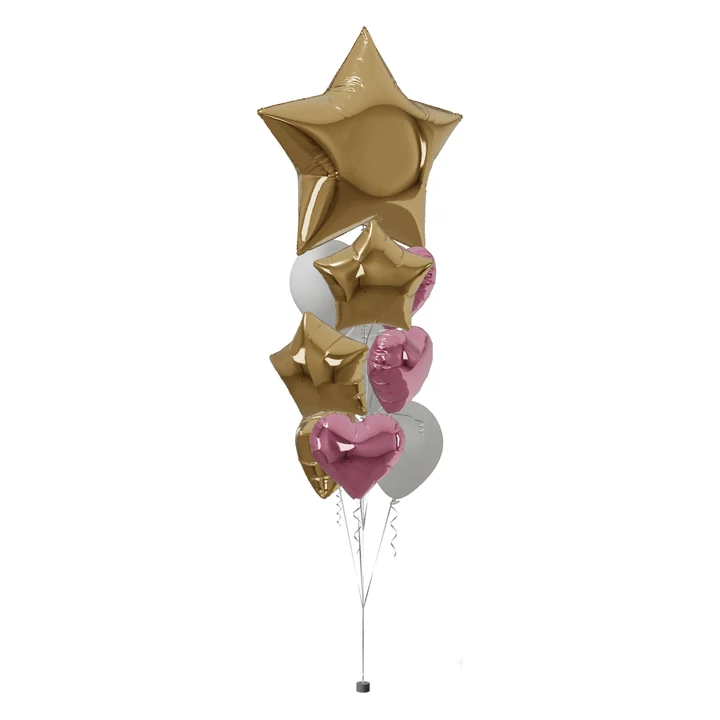
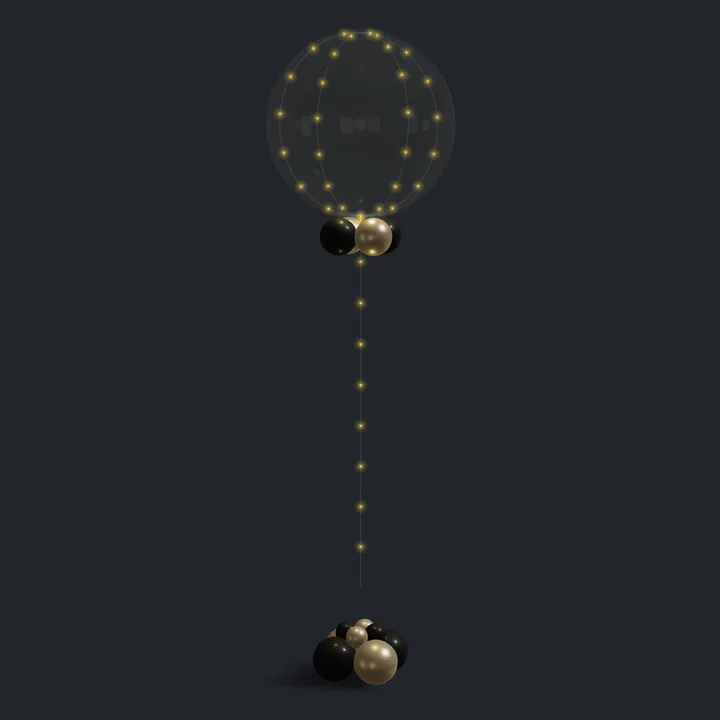
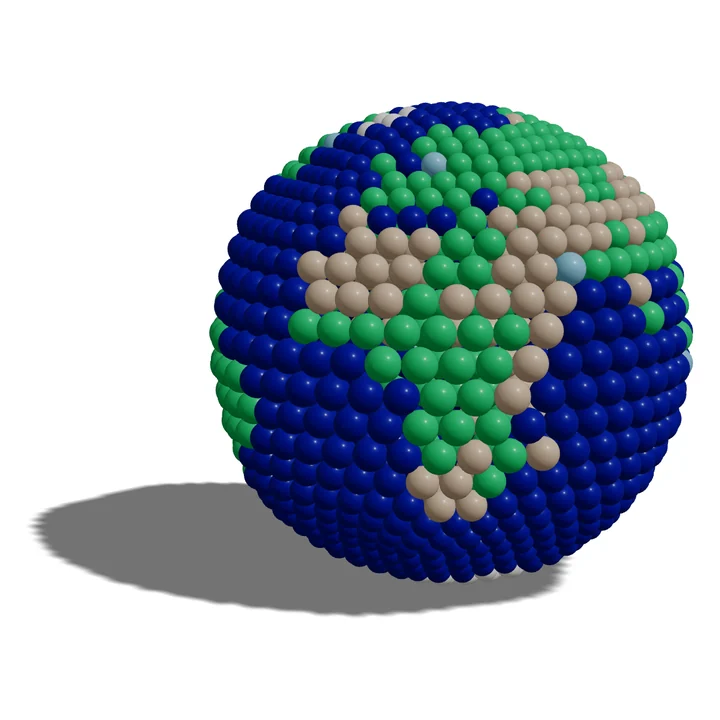
Wall Designer
All wall modes →Backdrops, link balloon walls, organic walls, mosaics (letters and numbers) and tunnels.
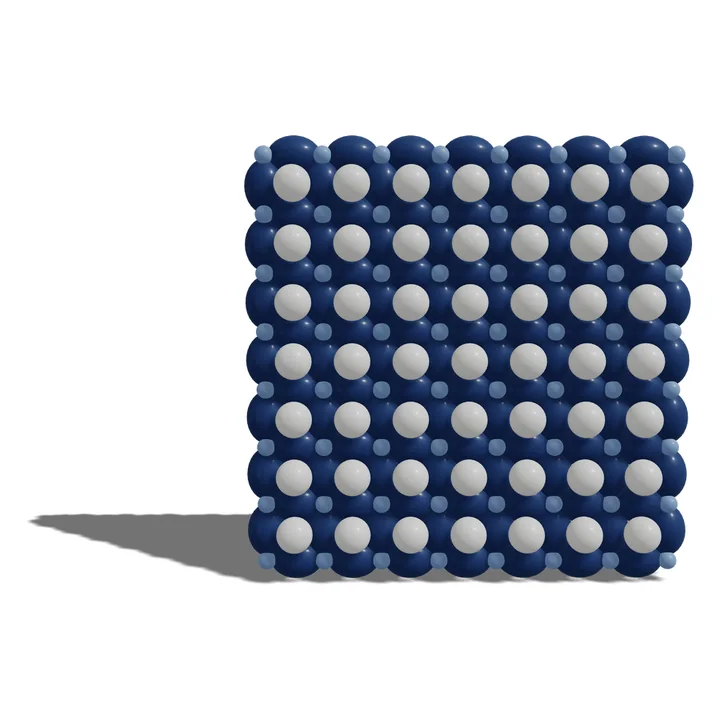
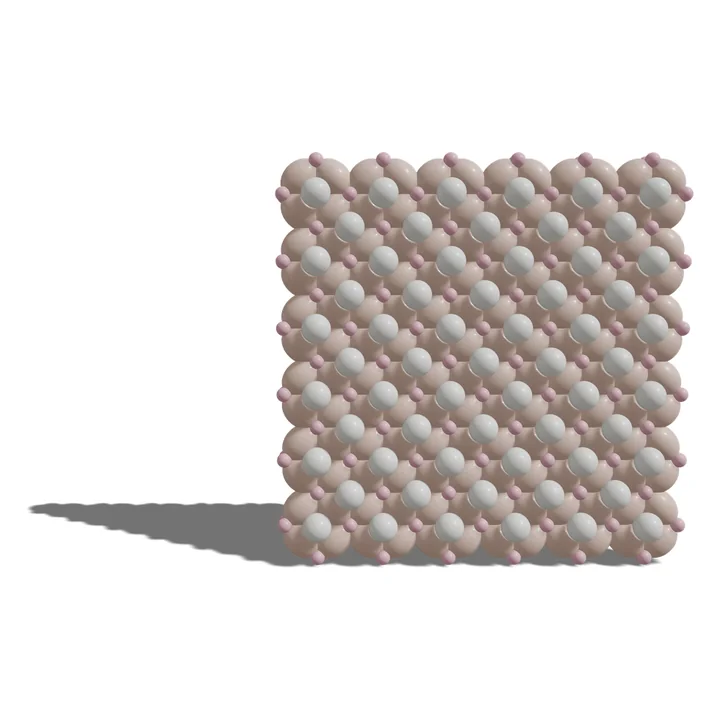
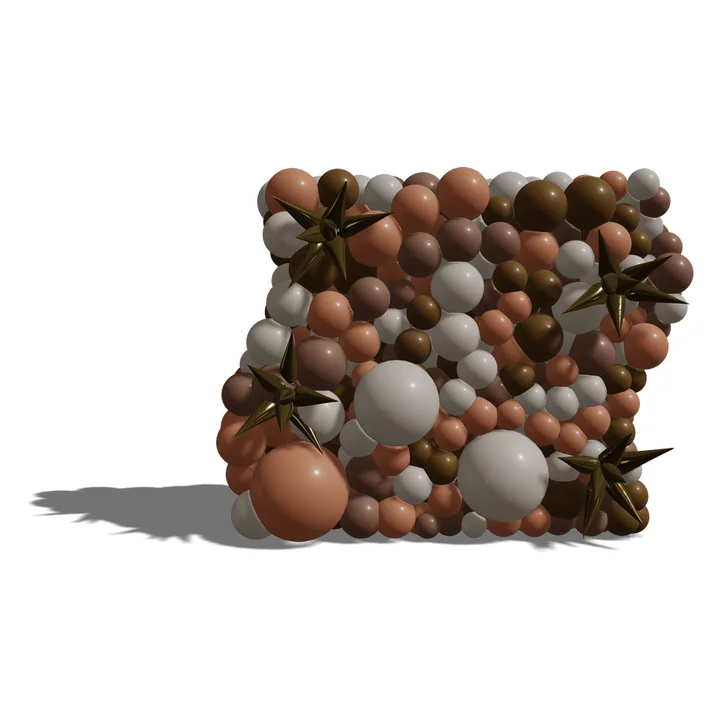
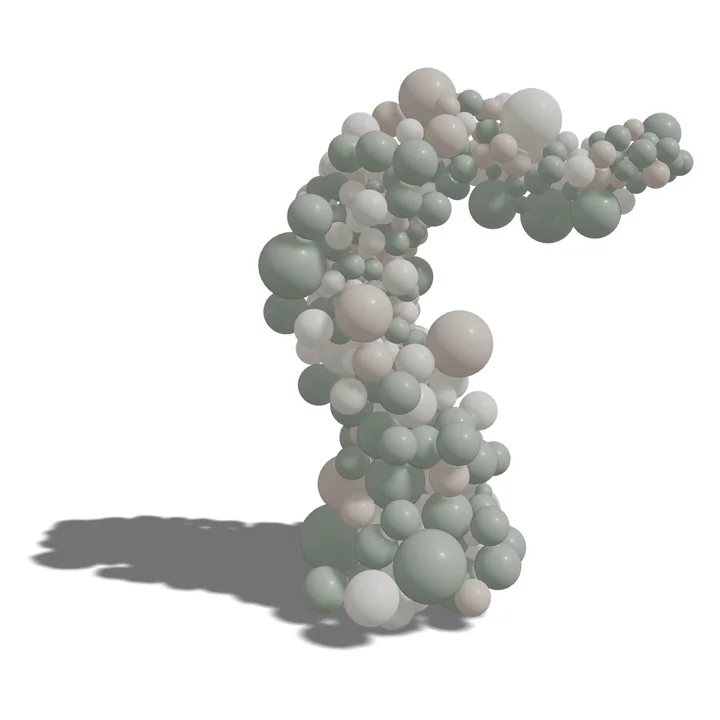
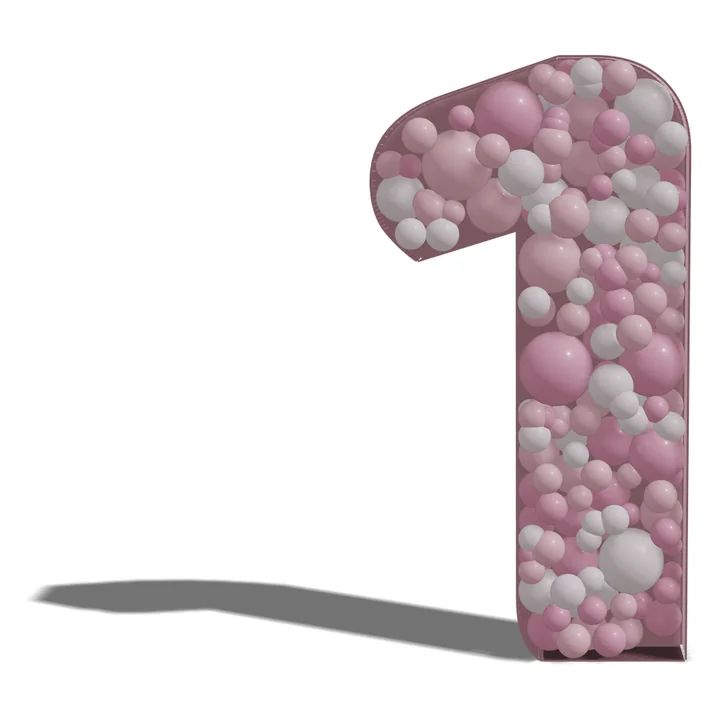
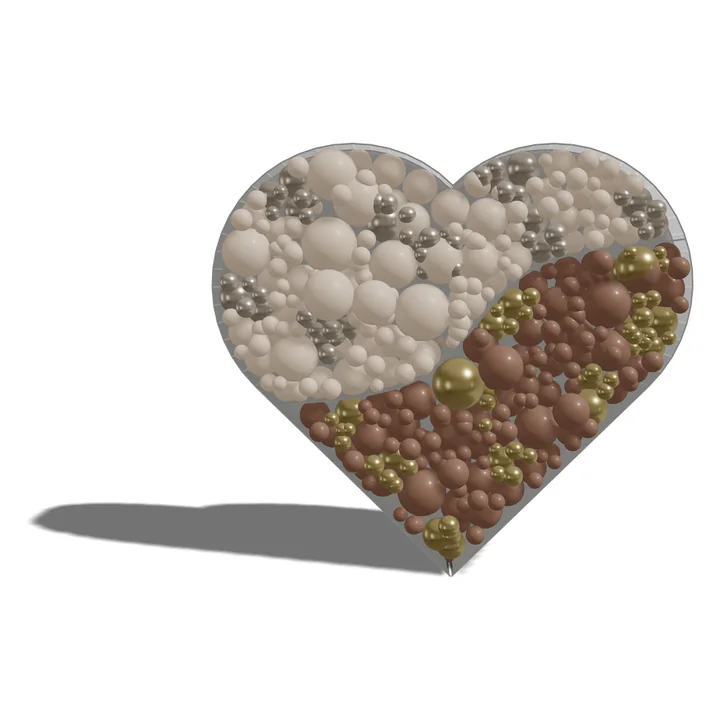
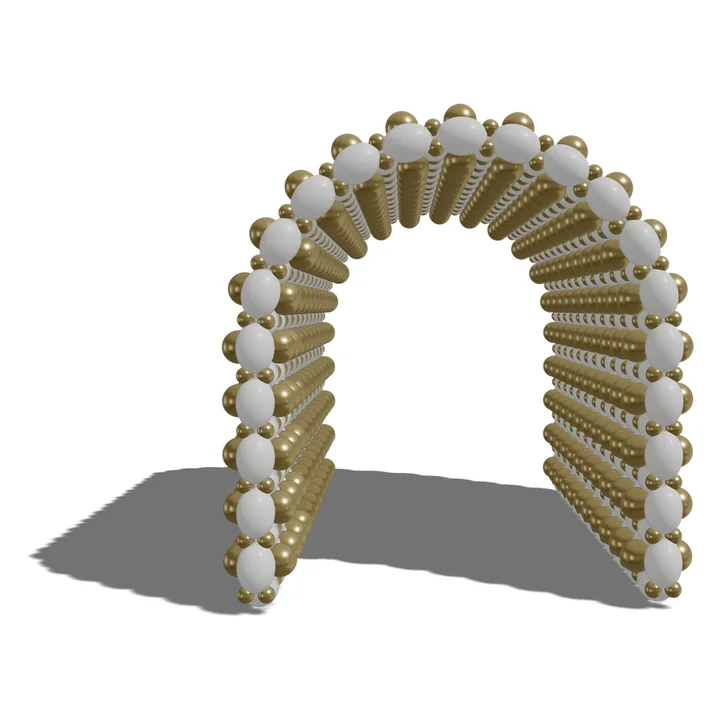
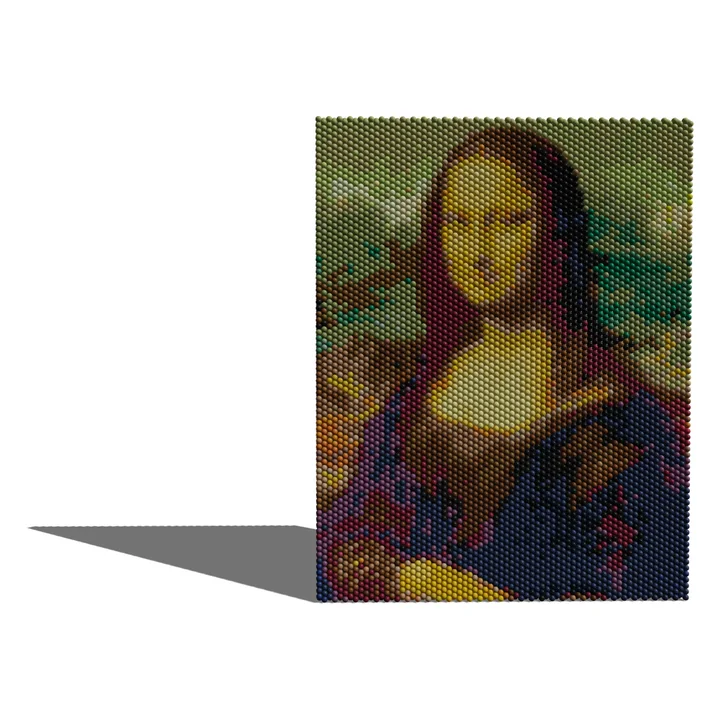
Free plan: the basic column, the round arch, a small helium bouquet and the link balloon grid wall. Other modes need a paid plan. From the Free plan you can open every plan for 24 hours, once, with 🚀 Try all plans free (24 h) in the toolbar.
How it works
Every design follows the same four steps, in both designers.
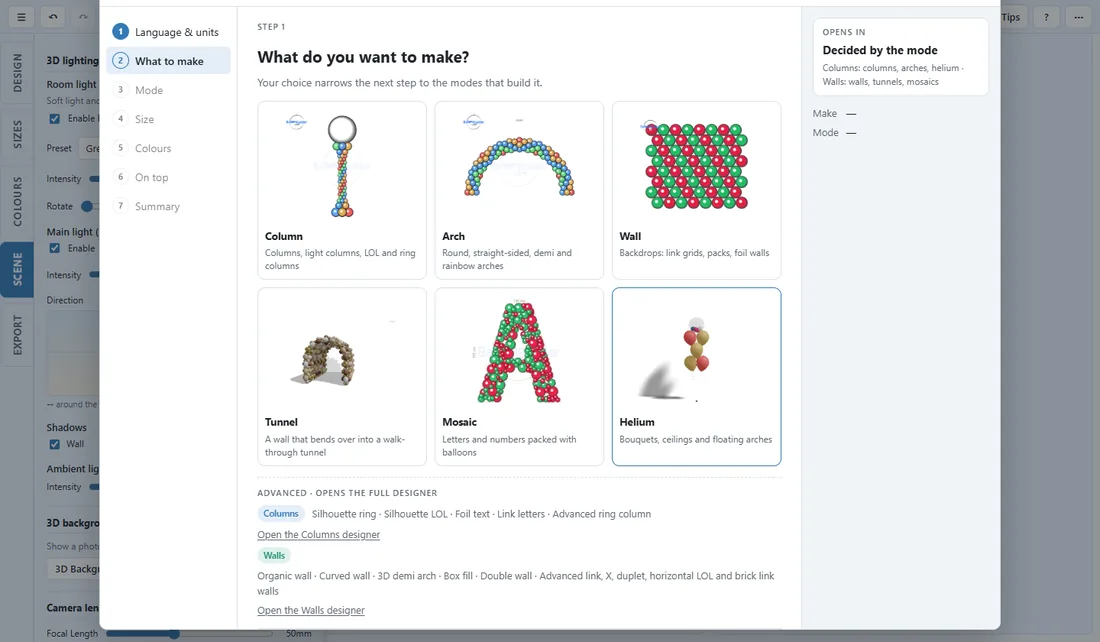
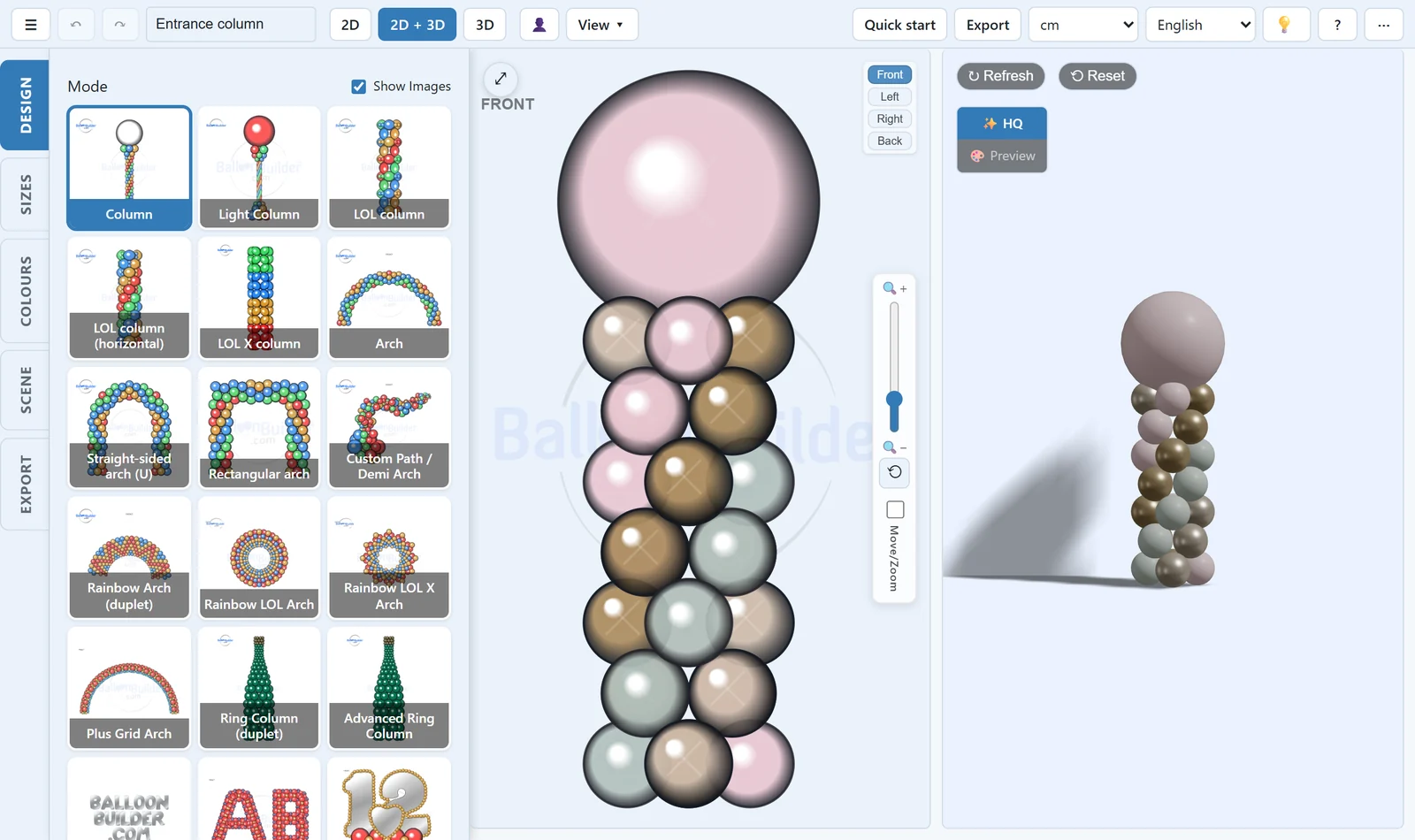
1Pick what you want to make
Quick start asks a few questions (what to make, size, colours) and opens the designer with everything set. You can also go straight to the designer and click a mode card in the DESIGN tab.
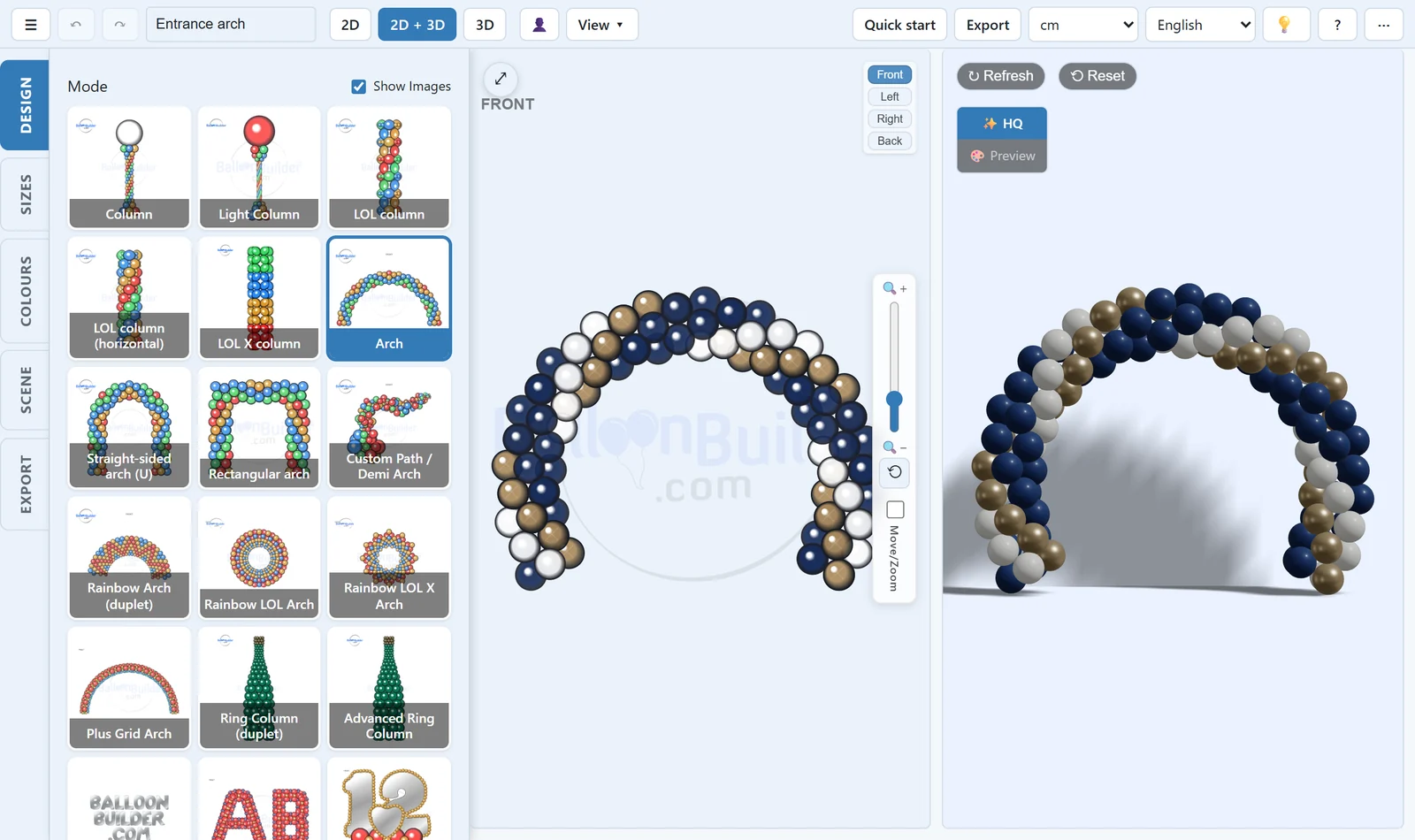
2Set the size and shape
Choose the balloon size, the number of layers, the arch angle or the wall width and height. The 2D drawing and the 3D model update straight away, so you see what each change does.
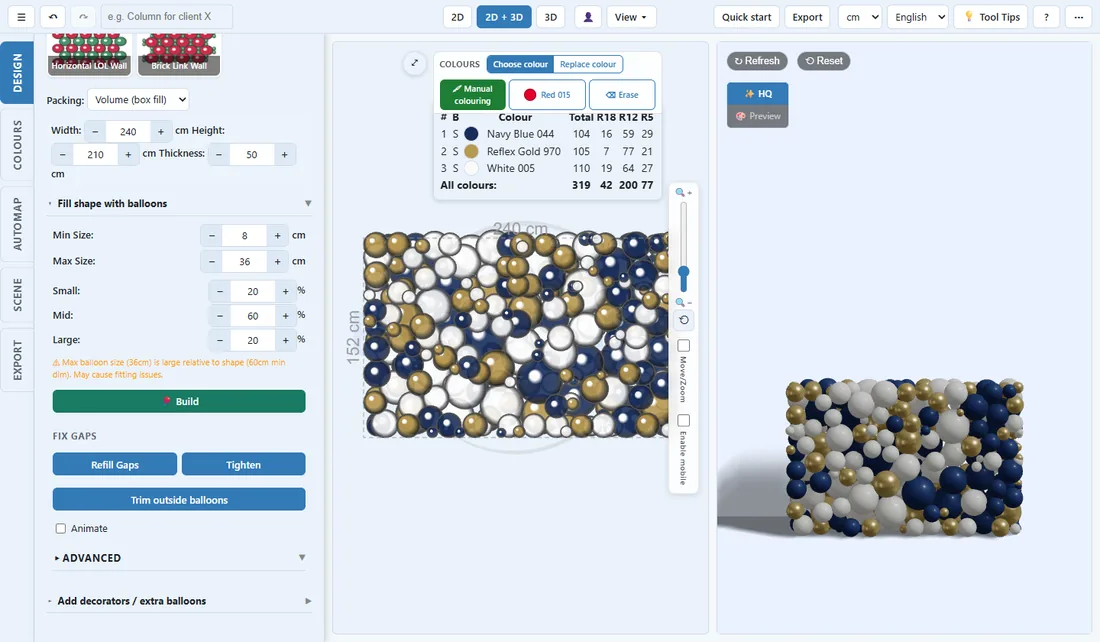
3Colour it with real balloon colours
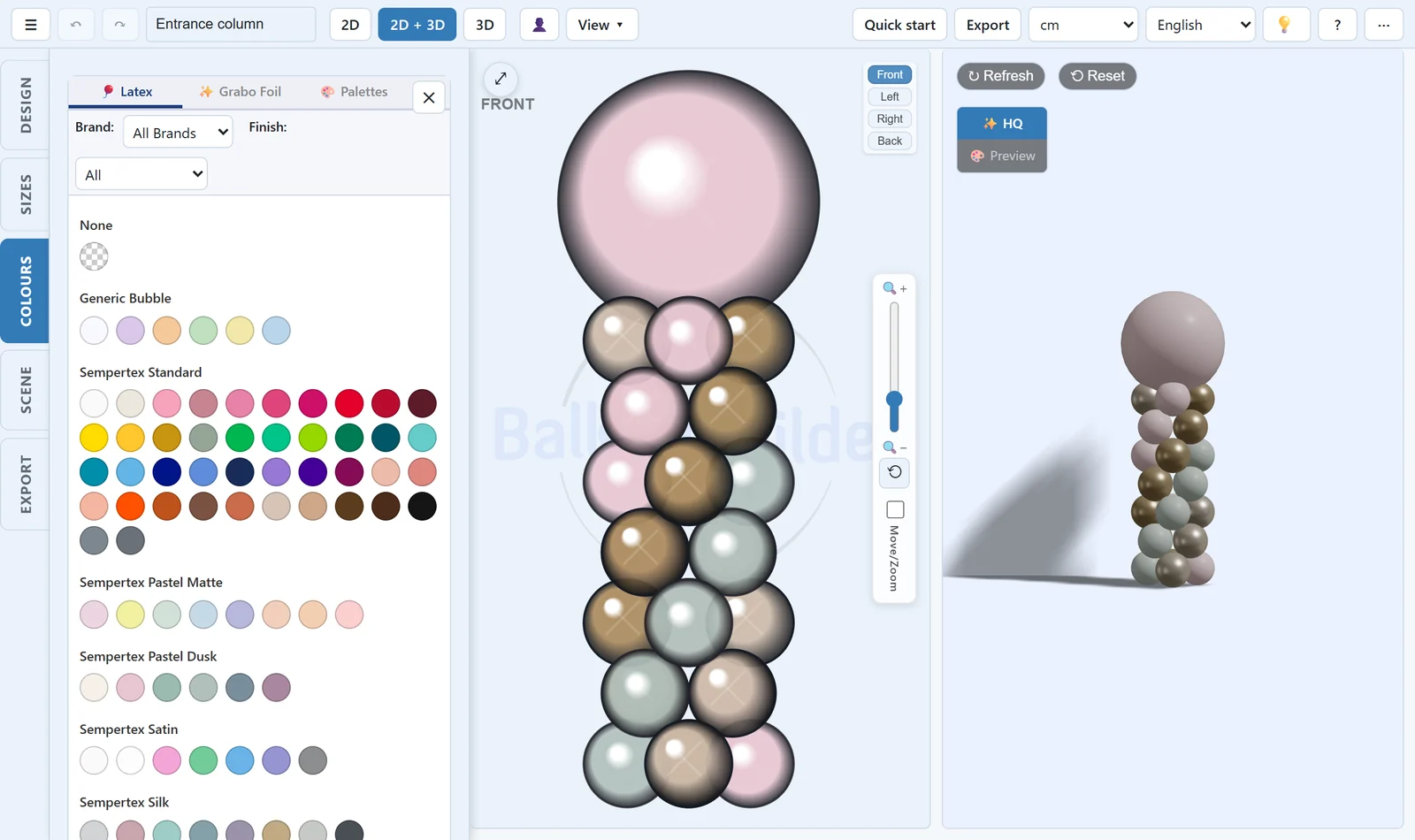
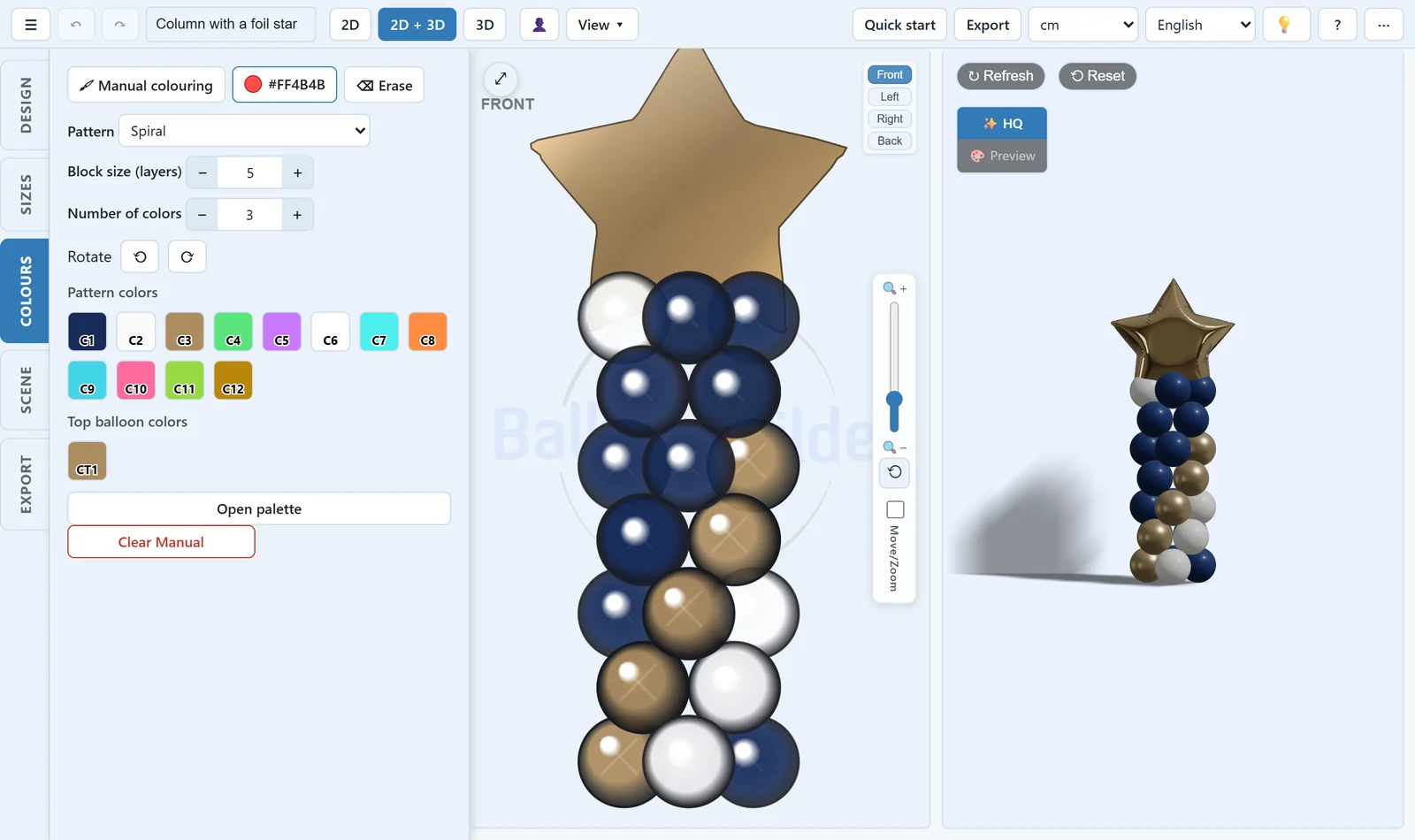
Pick a colour pattern (spiral, layered, random and more) and choose the colours from the palettes of real balloon brands: Sempertex, Tuftex, Kalisan, Gemar and Grabo foils. With 🖌 Manual colouring you paint single balloons in the 2D view.
4Save it and get the balloon list
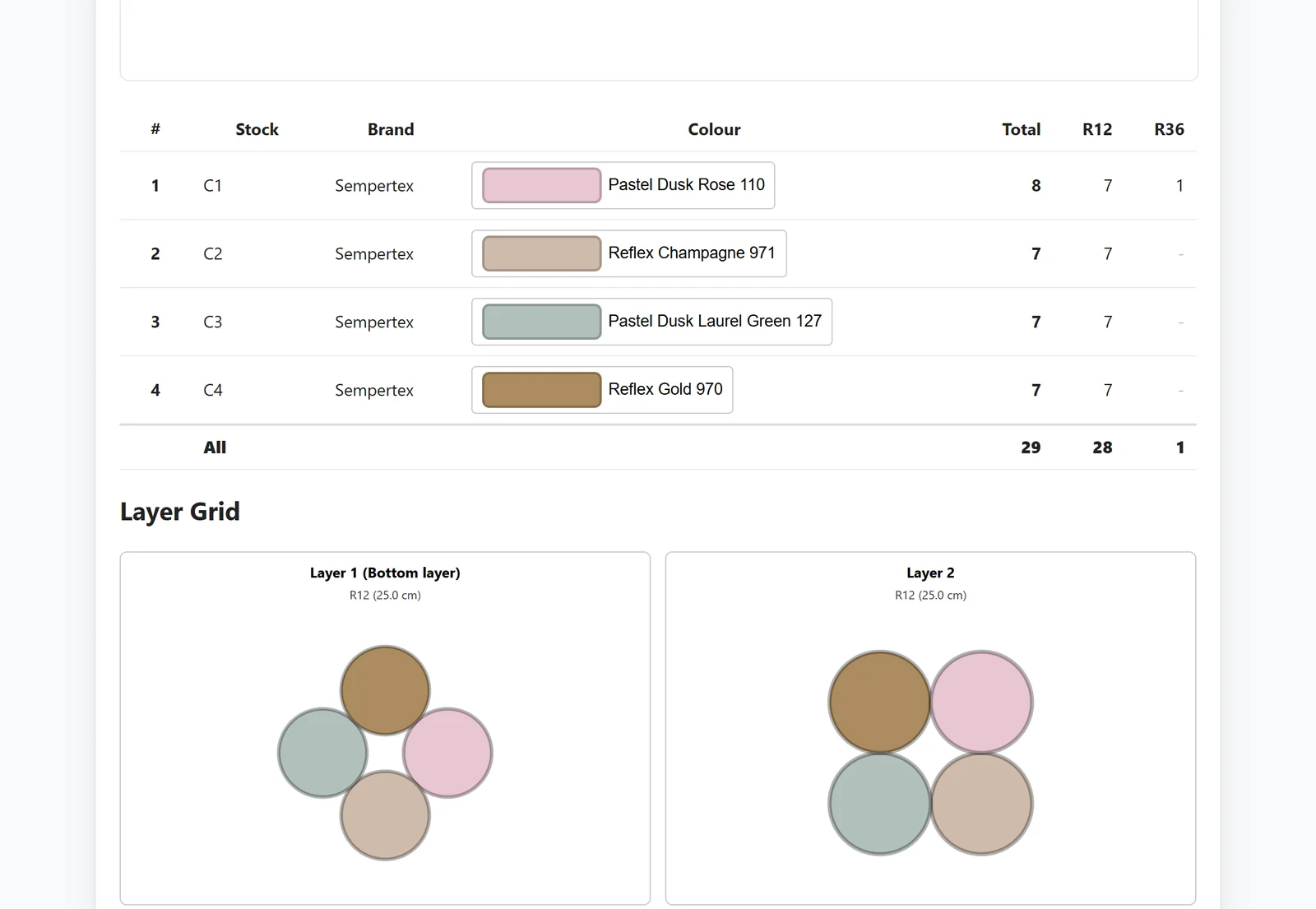
In the EXPORT tab you save the design as a file, export pictures for your client and open the Export list Entry: the balloon counts by colour and size, ready to print or save as a PDF.
The designer does not save automatically. Use Save Design (.json) before you close the page.
On your phone
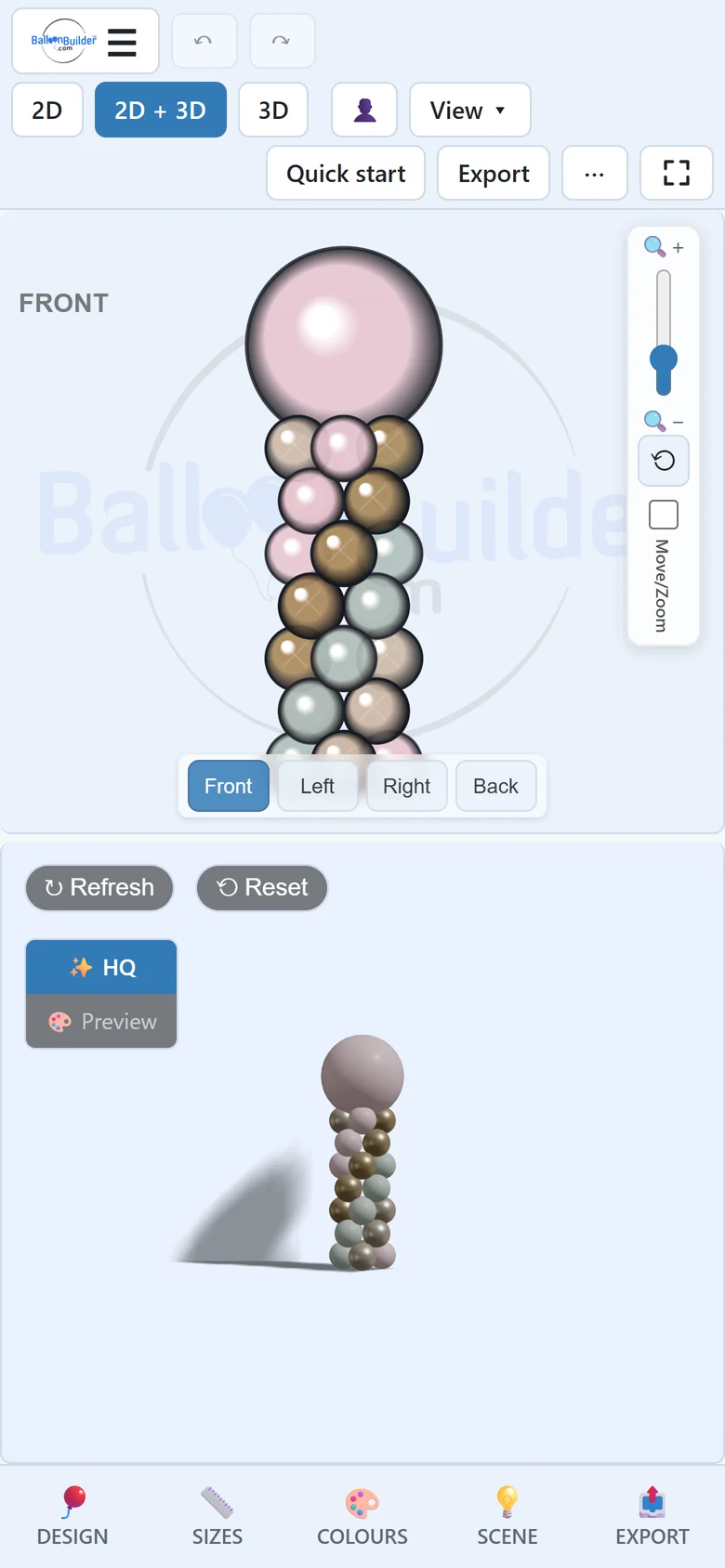
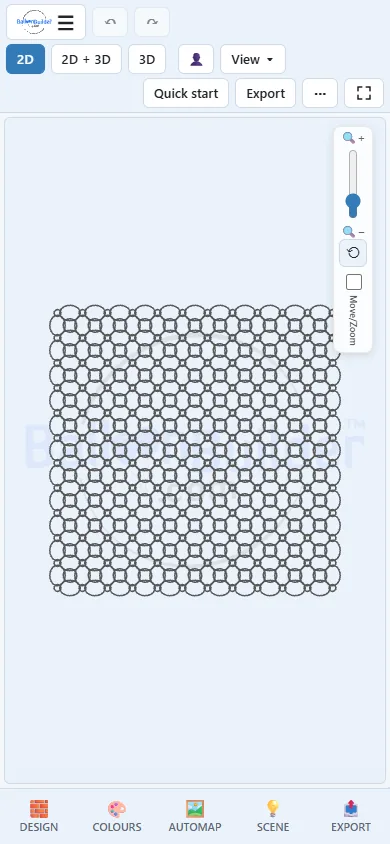
Both designers work on a phone or tablet. The side tabs move to a bar at the bottom, and each tab opens as a sheet over the lower half of the screen.
- In 2D, tap or drag to paint when Manual colouring is on.
- In 3D, one finger turns the design and two fingers zoom and move.
- Held sideways, the phone shows 2D and 3D side by side.
Where next
The help pages explain every button, tab and design mode, and have a Problem solving section.