Getting started
The Wall Designer lets you plan balloon walls and backdrops: link balloon grids, duplet packs, organic walls, mosaic letters and numbers, and tunnels. You see the wall in 2D and 3D, colour it balloon by balloon, and get a balloon list for ordering and building.
The screen in four parts
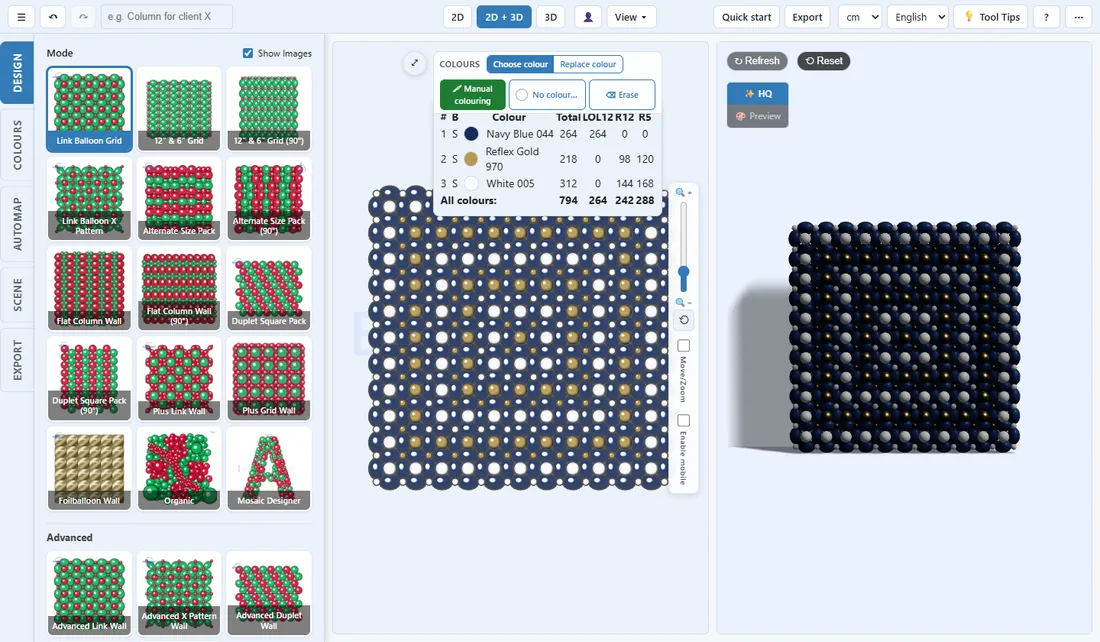
| Part | What it is for |
|---|---|
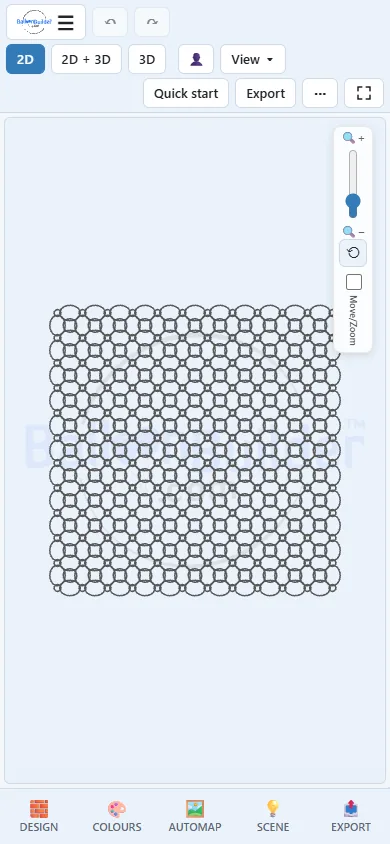
| Toolbar (top) | Undo and redo, the project name, the view choice (2D, 2D + 3D, 3D), the View ▾ menu, Quick start, Export, units, language, Tool Tips, Help (?) and the ⋯ menu. |
| Side tabs (left) | DESIGN (the wall type, its size and balloon sizes), COLOURS (palette, painting tools and colour patterns), AUTOMAP (a reference picture and automatic colouring from it), SCENE (3D lights, background and camera) and EXPORT (design files, images, the balloon list and 3D models). Click a tab to open its panel; click it again to close the panel. |
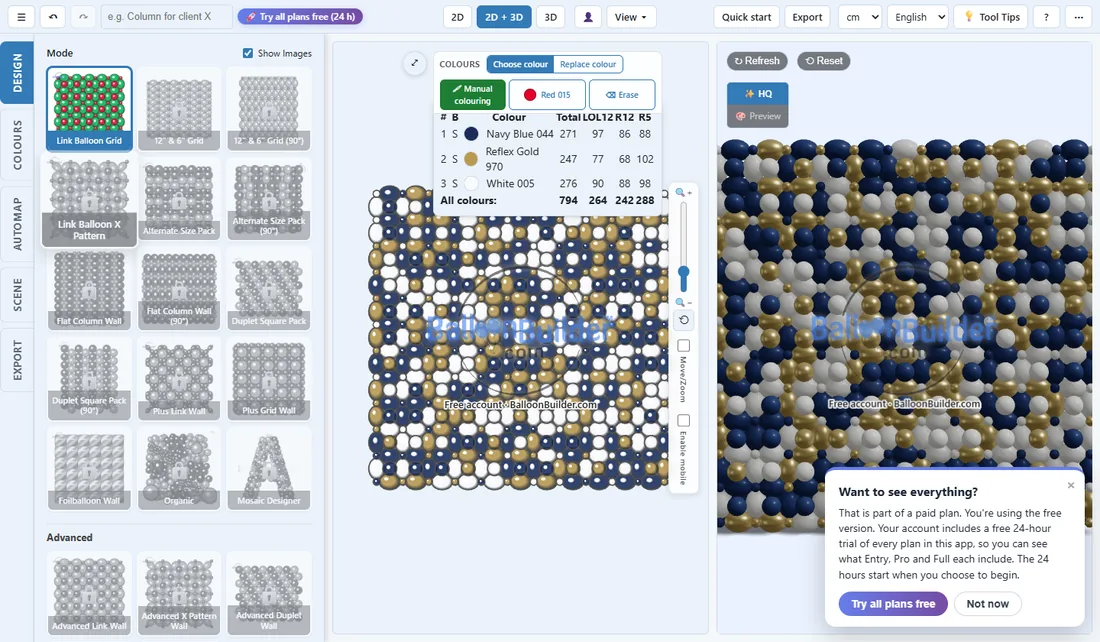
| 2D view (middle) | A flat drawing of the wall. You colour balloons here. The colour table in its corner counts the balloons of every colour. |
| 3D view (right) | A 3D model of the same wall, with lights and shadows. You can turn it round with the mouse. It only shows the wall; you cannot colour in it. |
Quick start or the full designer
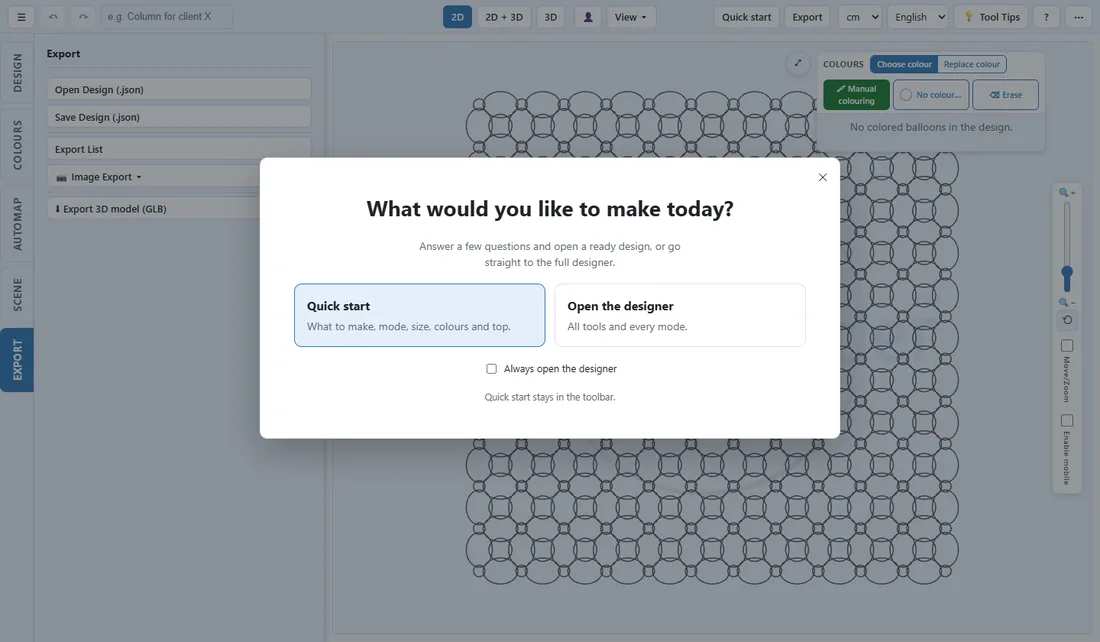
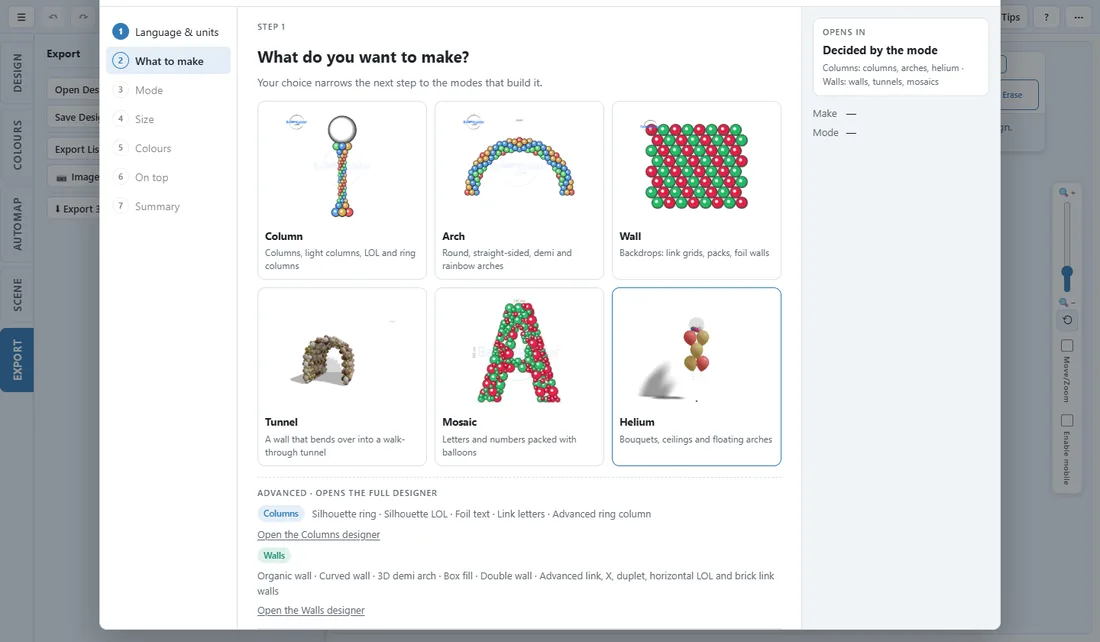
On your first visit in a browser session you see a start screen. Quick start asks a few questions (what to make, mode, size, colours) and then opens the designer with everything set. Open the designer takes you straight to every tool. Tick Always open the designer to skip the start screen. The Quick start button in the toolbar is always there for a new design.
Your first wall in five steps
- Pick a mode. In DESIGN, click a mode card, for example Link Balloon Grid or Duplet Square Pack.
- Set the size. Use − and + next to Columns and Rows. If you type a number instead, press 🔄 Refresh Size. Organic and mosaic walls use width and height in cm and are filled with 🎈 Build.
- Pick a colour. In COLOURS, press Palette and click a balloon colour.
- Colour the wall. Click or drag over balloons in the 2D view. Or fill the swatches C1, C2… and press 🎲 Apply Random or 🎨 Apply Pattern to colour the whole wall at once.
- Save and share. In EXPORT, use Save Design (.json) to keep the wall, Export List for the balloon list and PDF, and 📷 Image Export for pictures.
Save your work. The designer does not save automatically. If you reload or close the page, the wall you made is gone unless you saved it with Save Design (.json).
Plans
Some modes and tools need a higher plan. In this help they carry a small badge: Free Entry Pro Full. A badge means "this plan and higher". In the designer, a locked feature is greyed out with a padlock. Clicking it shows a short note with a link to the plans; on the Free plan it may offer the 24-hour trial of every plan.
Screen & buttons
What the toolbar buttons do and what you find in each side tab.

Toolbar
| Button | What it does |
|---|---|
| ☰ | Shows or hides the side panel, so the views get more room. |
| ↶ ↷ | Undo and redo the last 20 steps (also Ctrl+Z and Ctrl+Y). |
| Project name | Names your design. The name is used for saved files and exports. |
| 2D · 2D + 3D · 3D | Shows the 2D view only, both views side by side, or the 3D view only. The active choice is blue. |
| Tunnel View | Only with Tunnel Mode on: shows the tunnel from the front. Press Back to Wall View to colour again. |
| 👤 | Shows a person next to the wall for scale. The person is never part of the design, the balloon list or the files. |
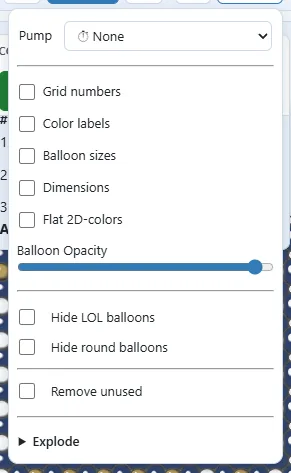
| View ▾ | Extra things to show in 2D: grid numbers, colour labels, balloon sizes, dimensions, flat colours and balloon opacity. It also has the inflator pump choice (adds pump timer settings to the balloon list), switches to show or hide balloon types, and Explode, which pulls rows and columns apart so you can see how the wall is built. |
| Quick start | Starts a new design step by step. |
| Export | Opens the EXPORT tab. |
| cm / inch | The unit for every measurement. |
| Language | English, Español, Suomi, Deutsch, Italiano, Français. |
| 💡 Tool Tips | When on (blue), hold the mouse over a control for a moment to see what it does. |
| ? | Opens this help. |
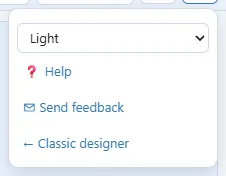
| ⋯ | Theme (light or dark), Help, Send feedback and ← Classic designer (the previous layout; your design files open in both). |
On the views
- Colour table (top of the 2D view): every colour with its balloon count per balloon type, plus the painting buttons 🖌 Manual colouring, the current colour and ⌫ Erase. ⤢ folds it away. See Colours.
- Zoom strip (right edge of the 2D view): a zoom slider (🔍+ at the top, 🔍− at the bottom), ⟲ (back to the normal view), the Move/Zoom checkbox and Enable mobile (touch moving, see Mouse).
- FRONT / BACK (top left of the 2D view): duplet walls and double walls have two sides; this button switches between them.
- ↻ Refresh (3D view) redraws 2D and 3D and keeps the camera where it is. ⟲ Reset redraws and puts the camera back to the start.
- ✨ HQ / 🎨 Preview (3D view): HQ draws smooth balloons with shadows, best for exports. Preview is much lighter and faster for big walls or slower computers.
The side tabs
Only the controls that belong to the chosen mode are shown, so the panel changes when you change mode. Less common settings are folded away under headings such as ▸ ADVANCED or ▸ MORE OPTIONS; click them to open.
DESIGN
The mode cards (what you build), then the size: Columns and Rows Entry. The − and + buttons change the size at once; if you type a number, press 🔄 Refresh Size. Below that:
- Flip Inside/Outside turns the wall structure the other way round.
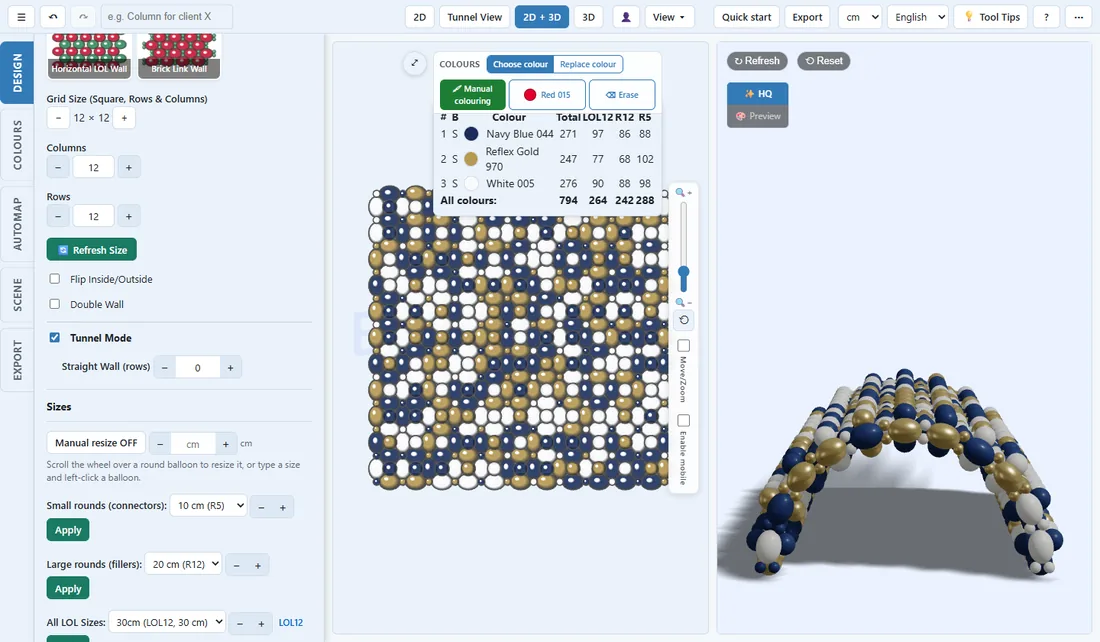
- Double Wall adds a second layer behind the front one Pro. Tunnel Mode bends the wall over the top into a walk-through tunnel Full.
- Sizes Entry: the balloon sizes for small rounds, large rounds and link balloons, Manual resize for single balloons, and Reset all sizes. "Balloon types by size" (Edit…) decides when a size counts as R5, R12, R18 and so on in the balloon list.
- Split balloons Entry: split a round balloon into four smaller ones, one by one or all at once, and join them again.
- Organic and mosaic walls have their own settings here: shape and size in cm, balloon size mix, 🎈 Build, gap fixing and decorations (garlands, exploding stars, big balloons, flowers, clusters). See Wall modes.

COLOURS
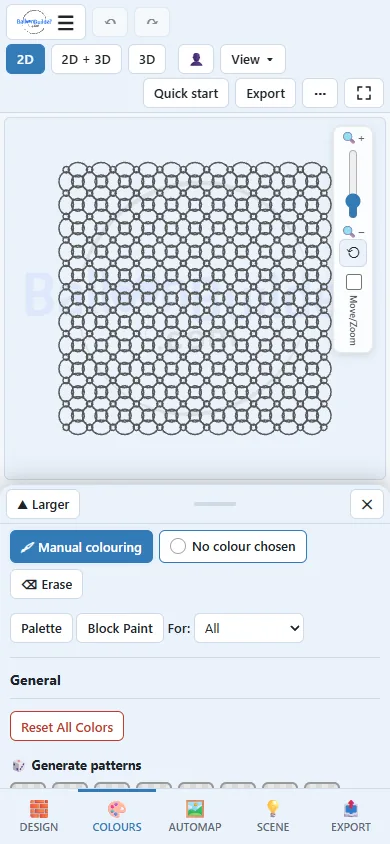
The palette, the painting tools (Manual colouring, Erase, Block Paint, Shape Paint), Reset All Colors and the colour pattern generator. See Colours.
AUTOMAP
Load a reference picture (for example a logo or a client's sketch) and show it over or under the wall. Set its opacity, size, rotation and brightness; under ▸ MORE OPTIONS, Move by mouse + wheel zoom lets you move the picture with the right mouse button and size it with the wheel Entry. Auto-map Colors then colours the wall from the picture, using the balloon colour ranges you tick in "Automap From Palettes". Outline colour areas colours a one-balloon-wide line where two colour areas meet. Both Full.

SCENE
How the 3D view looks: room light, sun (drag the direction pad to move it), wall and floor shadows, a photo of the venue as the 3D background, the camera lens (phone, neutral or portrait), and two spot lights under SPOT LIGHTS. Entry for the basics; background photo and spot lights Pro.
EXPORT
Design files, the balloon list, images and the 3D model. See Saving & export.
What the button colours mean
Green creates something (Build, Refresh Size, Apply) · Blue adjusts, and also marks a tool that is on · Red outline removes or resets · Purple random or automatic · Amber stops something that is running.
Mouse, touch & keys
The 2D view is where you edit, the 3D view is where you look.
2D view
| Action | Result |
|---|---|
| Click a balloon | Paints it with the current colour, as long as no other mouse tool is on (see Problem solving). |
| Press and drag | Paints every balloon you pass over. |
| Scroll wheel | Zooms, only when Move/Zoom is ticked. Otherwise the wheel scrolls the page. |
| Right-button drag | Moves the view, only when Move/Zoom is ticked. The left button still paints. |
| Zoom slider, ⟲ | Always work. ⟲ goes back to the normal view. |

Move/Zoom is a switch, so the wheel and the right button do not fight with page scrolling and the other tools. When you untick it, the wall moves back to the centre. The zoom stays; press ⟲ to reset it.
3D view
| Action | Result |
|---|---|
| Left-button drag | Turns the camera round the wall. |
| Right-button drag | Moves (pans) the camera. |
| Scroll wheel | Zooms in and out. |
| ↻ Refresh / ⟲ Reset | Redraw. Reset also puts the camera back to the start. |
Phones and tablets
- The side tabs become a bar at the bottom. A tab opens a sheet over the lower half of the screen; ▲ Larger makes it taller, ▼ Smaller shorter and ✕ closes it.
- In 2D, tap or drag to paint. With Move/Zoom on (and Enable mobile, which is ticked automatically on touch screens), drag with one finger to move and pinch with two fingers to zoom. A short tap still paints.
- In 3D: one finger turns, two fingers zoom and move.
- Help is in the ⋯ menu on phones.
Keyboard and special mouse actions
| Keys / action | Result |
|---|---|
| Ctrl+Z | Undo (not while you are typing in a field). Use Ctrl on a Mac too; Cmd+Z does not undo. |
| Ctrl+Y or Ctrl+Shift+Z | Redo. |
| Esc | Leaves Shape Paint; on phones closes the sheet. |
| Shape Paint on | Click stamps the shape, right-click turns it a step, the wheel changes its size. |
| Manual resize on | Turn the wheel over a round balloon to change its size, or type a size and click a balloon. |
Wall modes
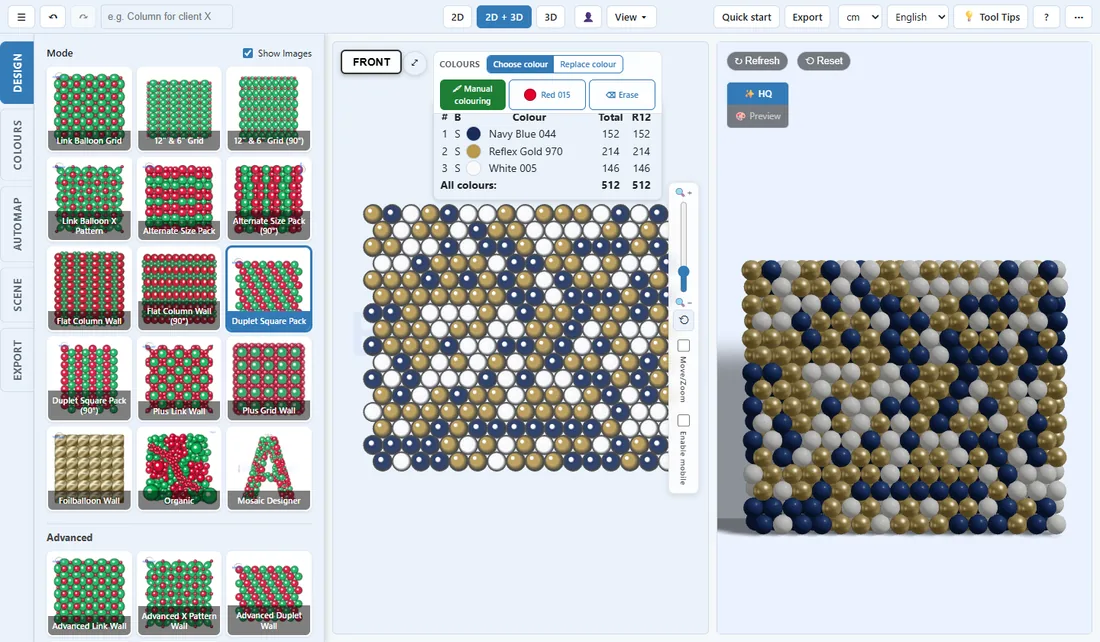
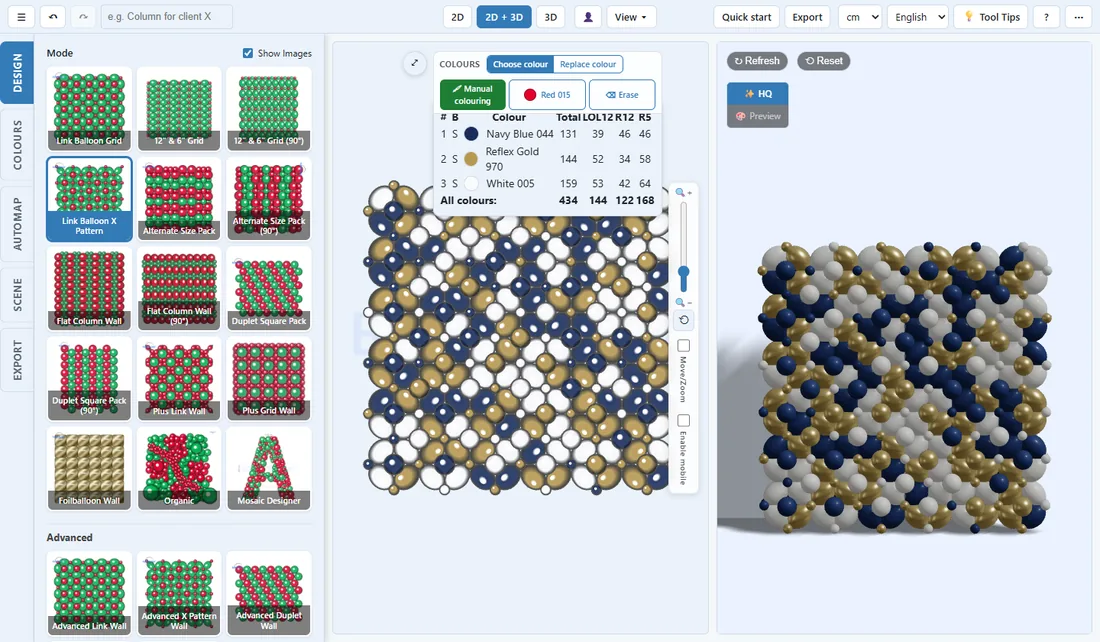
Choose a mode with the cards at the top of the DESIGN tab. Clicking a card switches to that wall type.
Grid and pack walls
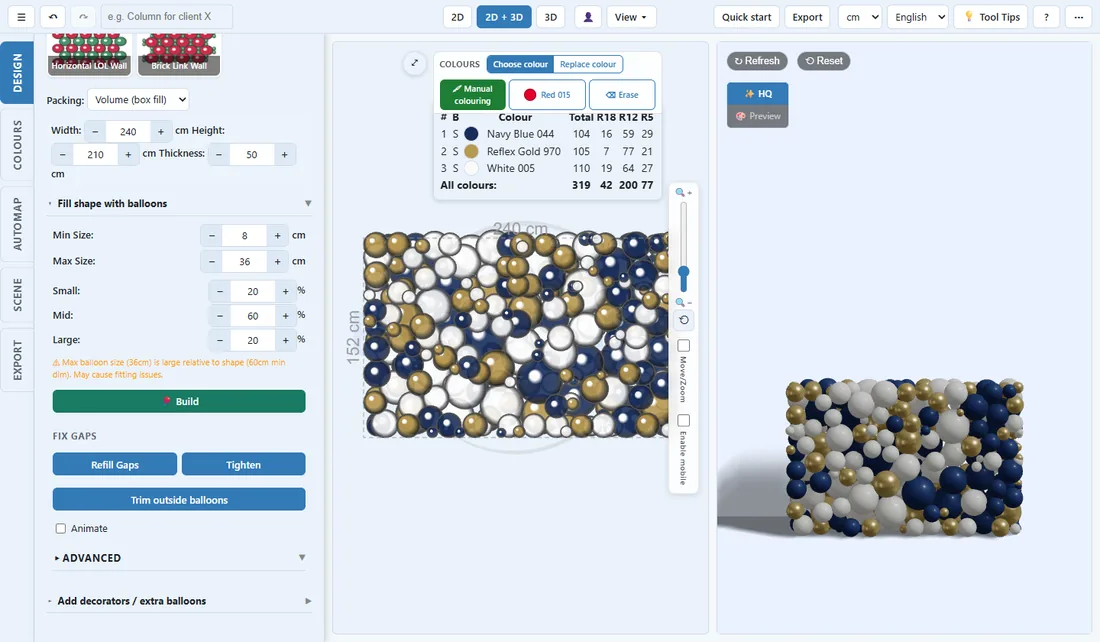
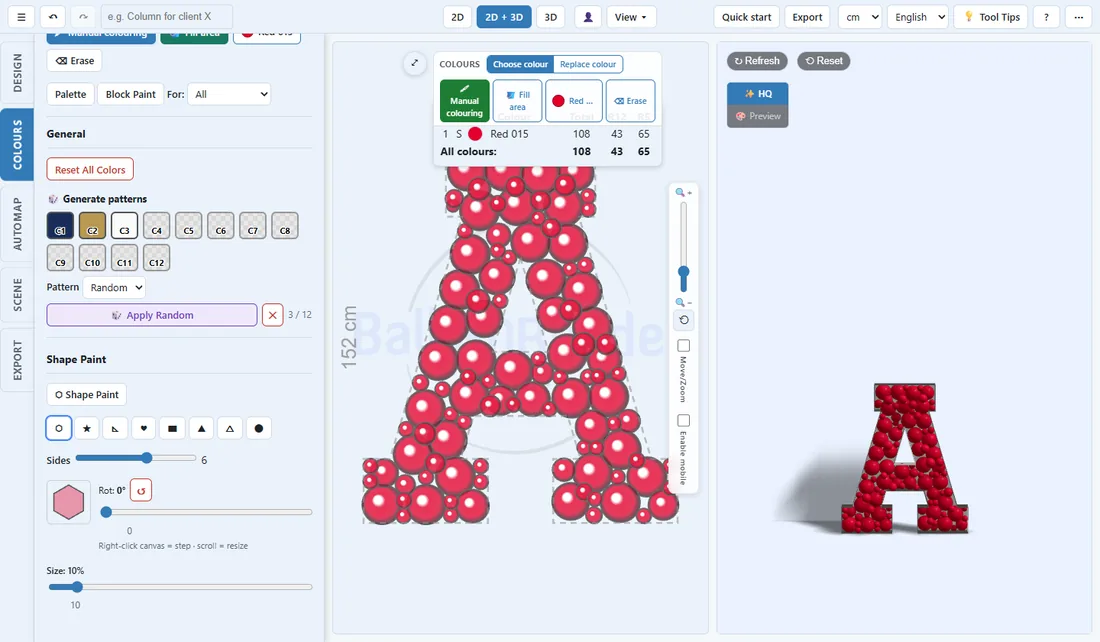
Organic and mosaic
Organic and mosaic walls stay empty until you press 🎈 Build. If gaps are left, Refill Gaps adds balloons and keeps the ones already placed, Tighten pulls loose balloons closer, and pressing Build again starts over. In mosaics, ✂️ Fit to Frame trims the balloons to the frame and ✏️ Draw Wall (under "Draw extra walls") adds extra walls inside the letters.
Advanced walls Full
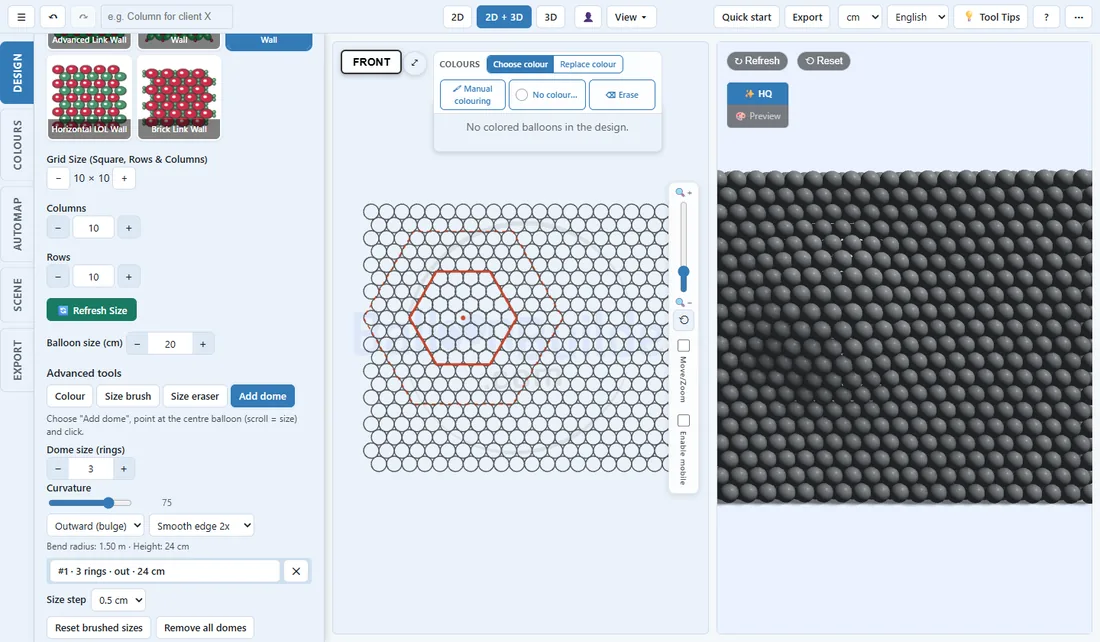
All advanced walls have Colour (normal painting) and Add dome (point at the centre balloon, turn the wheel to set the size, click to add). The Advanced Duplet Wall also has Size brush and Size eraser (make balloons bigger or smaller where you click). Press Colour to paint again.
Options for many modes
- Tunnel Mode Full: bends the wall over into a tunnel. Straight Wall (rows) sets how tall the straight sides are. Colour in the wall view; Tunnel View only shows it from the front.
- Double Wall Pro: a second layer behind the front one. Use FRONT / BACK on the 2D view to colour the back.
Colours
Pick a colour, then paint by hand, paint areas, or let a pattern colour the whole wall.

The palette
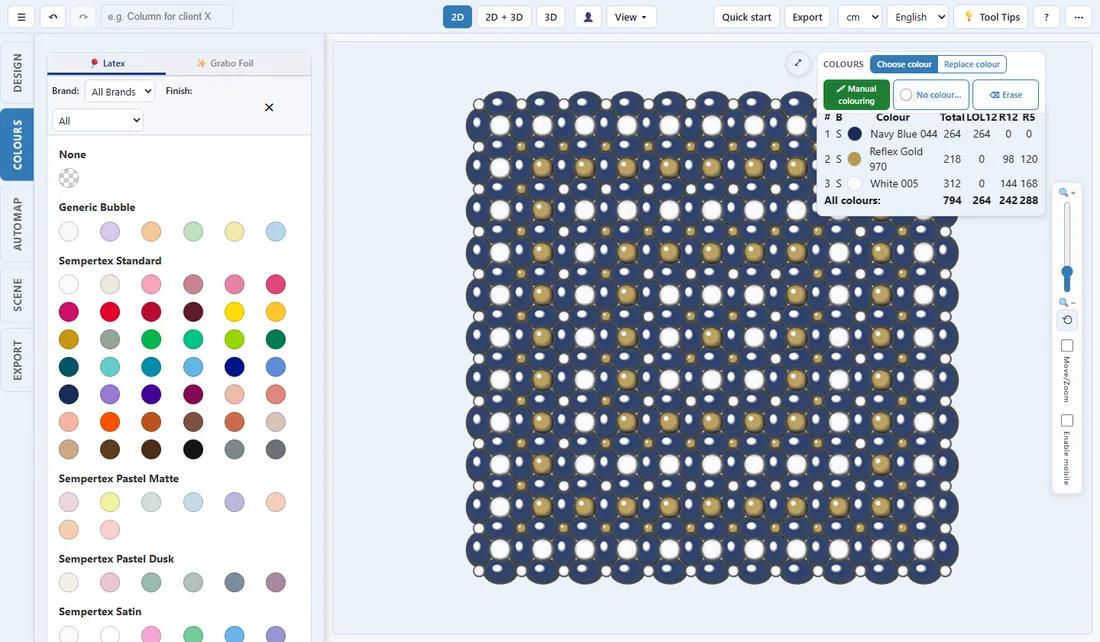
- Press Palette (or click the current colour chip) to open it.
- Latex: real balloon colours. Filter by Brand (Sempertex, Tuftex, Kalisan, Gemar, Custom) and Finish (Standard, Metallic, Satin, Pastel Matte, Neon, Crystal, Mirror and more). Grabo Foil: foil colours.
- None (top of the palette, chequered) means "no colour".
- The colour you click becomes the paint colour. Its name (for example "Red 015") shows next to 🖌 Manual colouring.
Painting tools
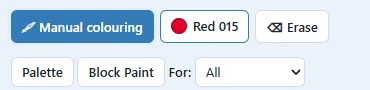
- 🖌 Manual colouring makes normal painting the active mouse tool: it switches every other mouse tool off. Use it whenever clicks stop colouring.
- Current colour (the chip, for example "Red 015") shows what a click paints. "No colour chosen" means a click does nothing yet.
- ⌫ Erase chooses "None": clicks and drags remove colours. It is a colour choice, not a tool, so it also works with Block Paint. Press Erase again to get your last colour back.
- Block Paint: drag a box over the wall and every balloon inside gets the colour. For: limits it to links or rounds, small or large (only those balloons get the colour).
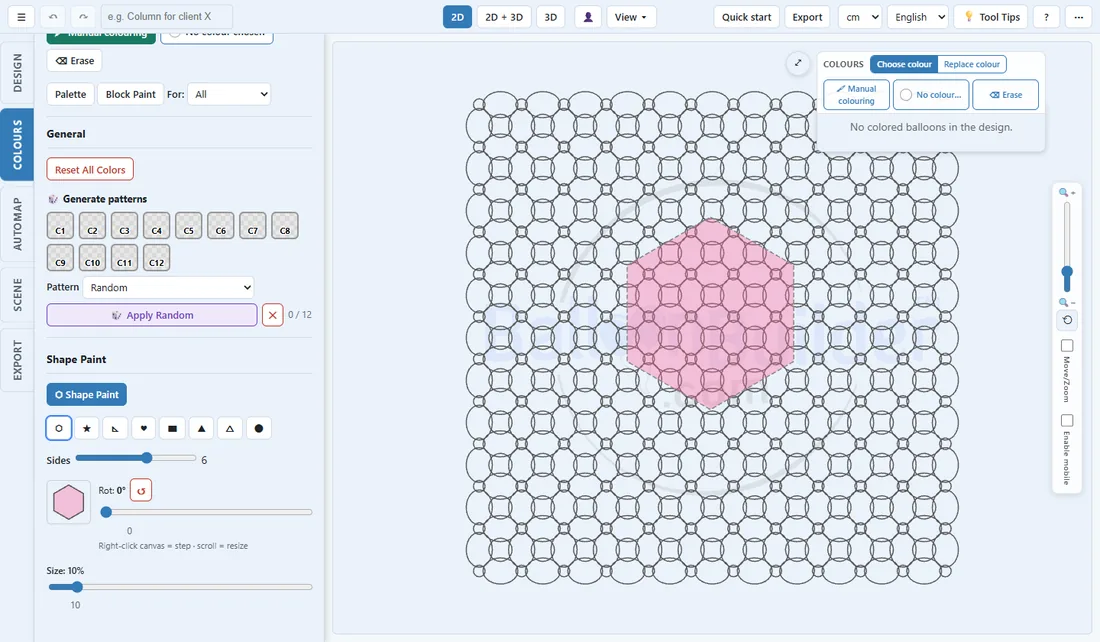
- ⬡ Shape Paint: stamp a shape (hexagon, star, heart, triangle, circle…) in the current colour. Set the sides, rotation and size; Esc stops it.
- 🪣 Fill area (mosaic only): one click colours a whole letter or part. Press it again to go back to one balloon per click.
- Reset All Colors (red) removes every colour from the wall.
Colour patterns: 🎲 Generate patterns
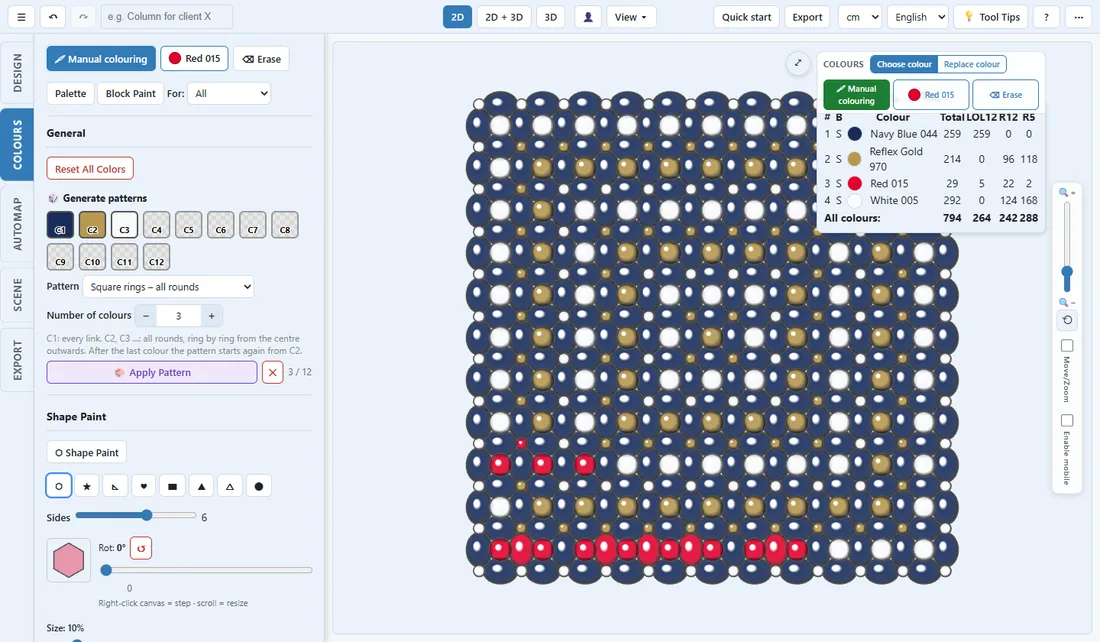
- Click a slot C1…C12 and pick a colour for it. ✕ empties all slots.
- Choose a Pattern: Random, square or diamond rings, lines, checks, diagonals, ombré, frame, bullseye, text and more (the list depends on the wall type). The hint under the list tells you which slot colours what.
- Press 🎲 Apply Random or 🎨 Apply Pattern. Patterns need C1 and at least one more slot.
- Plans: Random Entry, all patterns Pro.
Colour table
The table over the 2D view counts the balloons of every colour per balloon type. Its switch has two settings:
- Choose colour: click a row to paint with that colour.
- Replace colour: click a row to swap that colour for another one everywhere in the wall. The browser remembers this setting, so switch back to Choose colour when you are done.
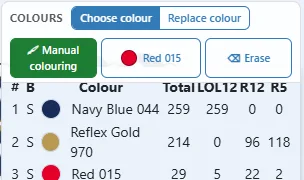
In View ▾, Color labels writes each colour's row number on the balloons, so the drawing matches the balloon list.
Colours from a picture
In AUTOMAP, load a reference picture, line it up with the wall and press Auto-map Colors Full. Tick the colour ranges you want to use under "Automap From Palettes". You can then fix single balloons by hand.
Saving & export
Everything is in the EXPORT tab (the Export button in the toolbar opens it).
| Button | What you get |
|---|---|
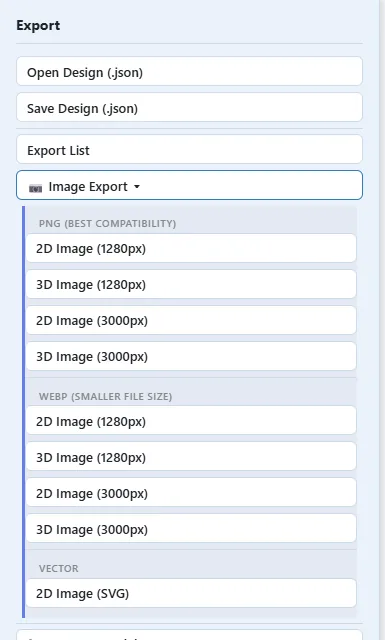
| Save Design (.json) Entry | A design file on your computer with the mode, size, colours, reference picture and tunnel settings. This is the only way to keep a wall you can open and edit again. A picture cannot be opened as a design. |
| Open Design (.json) Entry | Opens a saved design file. Files open in both the new and the classic designer. |
| Export List Entry | Opens a summary in a new window: 2D and 3D pictures, the balloon list per colour and size, pump timer settings (if you chose a pump in View ▾), link chains row by row and build grids. Elements ▾ chooses what is shown, Print / Save PDF prints it or saves it as a PDF, and Send to Quote Builder starts a quote. Duplet walls, alternate size packs and plus link walls also get 📱 Build guide and 📲 Send to phone once the wall is coloured (a QR code or email link to a step-by-step build page on your phone). Mosaics also have a printable template: the shape at full size as one PDF, or tiled on A4 / US Letter sheets. Each template uses one credit; Entry gets 1 a month, Pro 2 and Full 3, and more can be bought. |
| 📷 Image Export | PNG or WebP pictures of the 2D or 3D view at 1280 px Free or 3000 px Entry, and a 2D SVG drawing Entry. Free images carry the BalloonBuilder logo and a "Free account" line in the middle. |
| ⬇ Export 3D model (GLB) Entry | A 3D model file, for example to place the wall in a room in SceneBuilder. |
The Export List and the build guide open in a new window. If nothing happens, your browser blocked the pop-up: allow pop-ups for balloonbuilder.com.
Problem solving
The most common problems and how to fix them. Click a question to open it.
Mouse tools that take over the click
A click on the wall paints only when no other mouse tool is on. Each tool below uses the left mouse button for its own job while it is on, and most of them stay on until you switch them off. If clicks suddenly do something strange, or nothing, one of these is probably on. A tool that is on has a blue button, a ticked checkbox or a changed button text.
| Tool (where) | What a click or drag does while it is on |
|---|---|
| Manual resize (DESIGN › Sizes) | Changes the size of the balloon you click or scroll over. |
| Activate split-mode (DESIGN › Split balloons) | Splits a balloon into four, or joins a split balloon again. |
| Block Paint (COLOURS) | Drag a box to paint. A single click does nothing. |
| ⬡ Shape Paint (COLOURS) | Stamps the shape. A preview of the shape follows the mouse. |
| Draw / Move buttons for garlands, stars, big balloons, flowers (Organic) | Draws or moves the decoration. |
| ✏️ Draw Wall (Mosaic › Draw extra walls) | Places the start and end points of an extra wall. |
| ⭕ Open / close letter holes (Mosaic › Advanced) | Opens or closes the area inside a letter, and clears the built mosaic (build it again afterwards). |
| Add dome, Size brush, Size eraser (Advanced walls) | Changes balloon sizes or adds a dome. Press Colour to paint again. |
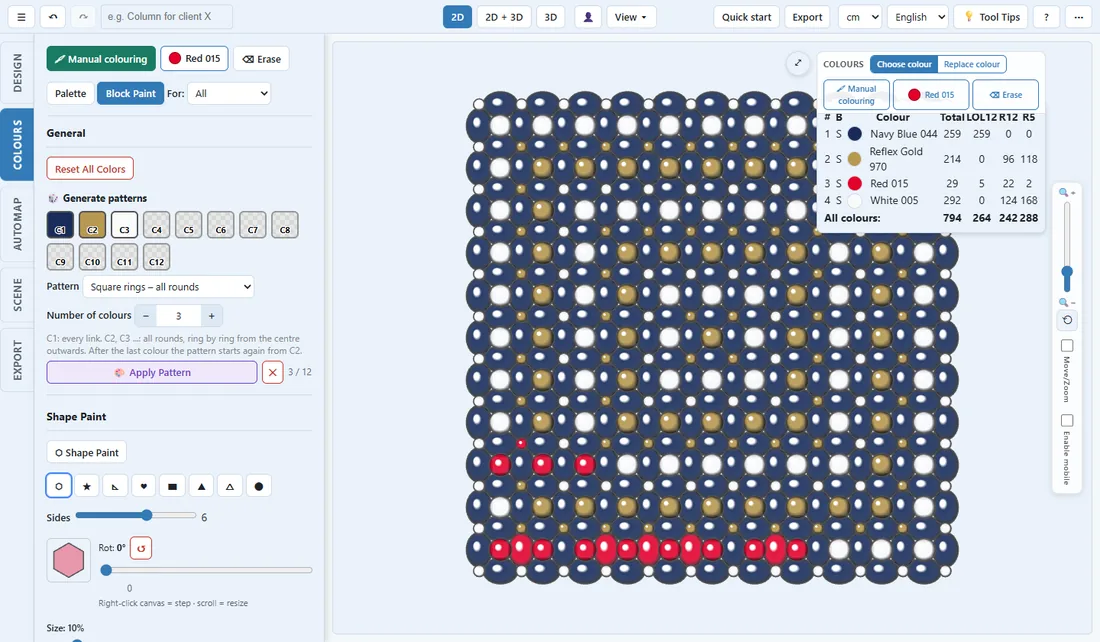
The quick fix: press 🖌 Manual colouring (in COLOURS or in the colour table). It switches all these tools off at once, so clicks colour again. The Manual colouring button is blue while normal painting is active, in both places. Move/Zoom, Move by mouse + wheel zoom, Erase and Fill area are not in the list: they do not stop painting.
Common questions
I click a balloon but nothing happens
- Is another mouse tool on? See the table above, or simply press 🖌 Manual colouring.
- Is a colour chosen? If the chip says "No colour chosen", press Palette and pick one.
- Are you in the 3D view or the Tunnel View? You can only colour in the 2D wall view.
- Is it an organic or mosaic wall that has not been built yet? Press 🎈 Build.
Clicks remove colours instead of painting
⌫ Erase is chosen (the chip says "Erase (None)"). Press Erase again or pick a colour in the palette.
Clicking a colour in the table replaces it everywhere
The colour table's switch is set to Replace colour. Switch it to Choose colour; then a click in the table picks that colour for painting.
I switched mode and my wall is not there
Each wall type keeps its own wall while the page is open. Click the card of your first wall type again. To keep a wall after you close the page, use Save Design (.json).
The wall did not change size
The − and + buttons change the size at once. If you type a number, press 🔄 Refresh Size. For organic and mosaic walls, change the width and height and press 🎈 Build.
The organic or mosaic wall has gaps
Press Refill Gaps to add balloons into the gaps, or Tighten to pull loose balloons together. A very large maximum balloon size compared to the shape causes gaps; the panel shows a warning when that happens. Build again for a completely new fill.
The scroll wheel does not zoom
Tick Move/Zoom on the zoom strip. The zoom slider and ⟲ work without it. When the reference picture's Move by mouse + wheel zoom is on, the wheel scales the picture instead.
The 3D view did not update, is grey, or is too close
Press ↻ Refresh to redraw (the camera stays) or ⟲ Reset to redraw and bring the camera back.
The designer is slow or jerky
- Switch the 3D view to 🎨 Preview. Use HQ only for exports.
- Use 2D only while you edit.
- For organic walls, untick Animate so Build finishes at once.
- In SCENE, switch off shadows and the room light. Big walls and phones need more time.
Random or a pattern colours everything in one colour, or does nothing
Fill more than one slot. Random uses every filled slot; patterns need C1 and at least one more.
I cannot colour the back of a double wall
Press FRONT at the top left of the 2D view to switch to the back side.
My wall is gone after a reload
The designer does not save automatically. Use Save Design (.json) in EXPORT and open the file again with Open Design (.json). The theme, the unit (cm or inch) and the language are remembered in this browser, but the design is not.
A mode or button is greyed out with a padlock
It needs a higher plan. Clicking it shows a short note with a link to the plans; on the Free plan it may offer the 24-hour trial of every plan. The badges in this help show which plan each feature needs.
On the Free plan you get the Link Balloon Grid, painting tools and 1280 px images. Sizes, split, random colours and patterns, the reference picture, SCENE, design files, the Export List and 3D models are locked.
The Export List or build guide does not open
They open in a new window. Allow pop-ups for balloonbuilder.com in your browser and press the button again.
The page looks broken or old after an update
Reload the page with Ctrl+F5 (Mac: Cmd+Shift+R). This loads the newest files instead of old copies saved in your browser.
The balloon list shows a size under the wrong type (R5, R12…)
DESIGN › Sizes › "Balloon types by size" › Edit… decides which size counts as which balloon type. The same rule is used in the Column & Arch Designer.
Still stuck?
Use ⋯ › ✉ Send feedback or email [email protected]. Tell us the mode and what you clicked, and attach a screenshot or your design file if you can.
BalloonBuilder.com · Wall Designer help · updated October 2026